
4 Different Types of Flashcards You Need to Know About

You’ve probably heard plenty about how effective flashcards are as a study method to improve retention, and you’re ready to give them a try.
You can either study from flashcards digitally through a flashcard app or in the conventional physical form.
The problem, however, is that schools do not teach us how to actually use this effective study resource. As a result, students have no idea about the types of flashcards and the best use cases for each, let alone how to build them well enough to get the memory benefits they're famous for.
In this article, I will explain the core structural types of flashcards and show you how they can be modified into specialized formats for any study subject.
You’ll also learn how to create effective flashcards in a fraction of a second using RemNote.
Let’s go.
TL;DR
There are 4 main types of flashcards: basic question-and-answer flashcards, cloze deletion flashcards, image occlusion flashcards, and reverse/directional cards. These types can be modified to include multiple-choice or multimedia-enriched (video, audio) flashcards. You can either study them digitally through a flashcard app like RemNote or using physical paper-based flashcards.
Digital flashcards vs. physical cards
There are two ways to practice flashcards. You can either do so online via flashcard tools (e.g., RemNote, Anki, Quizlet, Brainscape) or you could use physical cards.
Digital flashcards are more useful if you have a high card load. If, let’s say, you’re learning a language or you’re a medical student studying for a licensing exam, you’d benefit more from digital flashcards. They are quicker to create. Good flashcard apps like RemNote or Anki use built-in scheduling algorithms to space out your cards based on thow likely you are to have forgotten each card.
Physical flashcards, on the other hand, help those who learn best by writing information by hand. They add a spatial element to the learning process. Plus, they give your eyes a break if you otherwise have a lot of screen time. But they are time-consuming and require a lot of manual effort.
Here are the key differences between them:
| Criteria | Digital flashcards | Physical flashcards |
| Creating cards | Faster, can be automated | Handwriting / Printing |
| Review system | Automatic spaced repetition | Manual sorting |
| Portability | You have thousands of cards on your phone | Bulky to carry |
| Distractions | App notifications can be distracting | No distractions |
| Multimedia | Can add audio, video, images | Limited to handwritten text and drawings |
| Cost | Both free and paid options | Only pen and paper costs |
How many flashcard types are there?
There are 4 structural types of flashcards:
- Basic cards in which there’s a question at the front and an answer at the back
- Cloze deletion cards where a certain keyword is left blank in a sentence, and you need to recall it while studying
- Image occlusion cards that hide part of an image label for you to recall
- Reverse or bidirectional cards that test the same information in both directions (front and back) rather than in one Q&A format
However, these 4 types are best thought of as categories that you can modify to create many other card types.
The basic flashcard type, for example, can be adjusted into a multiple-choice question format or a true/false question format. You can also enrich your digital flashcards with multimedia elements, such as audio (heart murmurs, for instance) or helpful videos.
4 Different types of flashcards with examples
Now, let’s look at each of the 4 core types of flashcards. We’ll talk about digital flashcards here and give examples accordingly. We used RemNote to create the flashcards in the examples below. In RemNote, these are called Concept cards, and they are bidirectional by default.
1. Basic (Question & Answer)
This is the simplest type of flashcard that tests one specific piece of information. It forces your brain to retrieve a specific answer from memory when prompted with a question. It has:
- The front side, which serves as the question prompt
- The back side that reveals the answer
Basic flashcards work best when you are learning vocabulary, for example. You don’t need too much context or understanding of the fact you are trying to memorize. Other use cases of this card type include formulas (Area of a circle on the front, r2 on the back), or specific historical dates, etc.
Basic flashcards can be single-line (one question and one answer), or multi-line (one question and multiple answer lines).
If you have an exam coming up, you could also convert your basic flashcards into multiple-choice flashcards. It shows you a question with multiple possible answers and lets you select the correct one, after which you also get feedback on your selection.
Example:
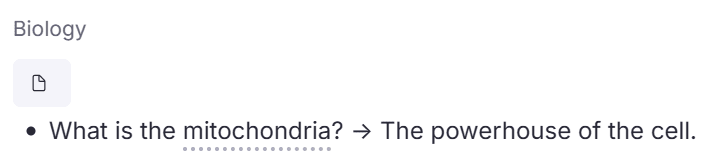
Here’s an example of a single-line basic Q&A flashcard:
The front:
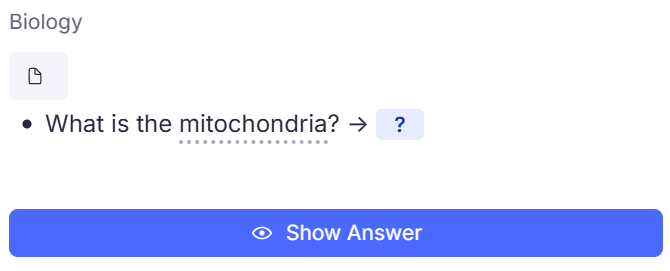
The back:
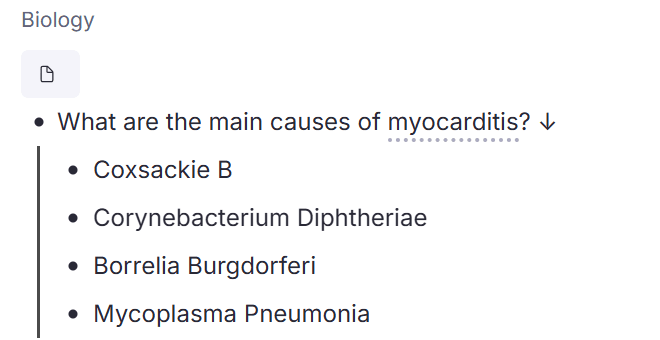
And this is what a multi-line basic card looks like.
The front (4 indicates that there are 4 causes you need to recall):
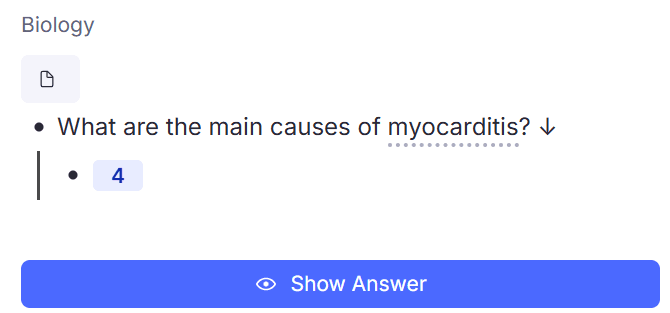
The back:
2. Cloze Deletion
The cloze deletion type of flashcard has a sentence from which one or more keywords are replaced by an empty blank (or a question mark) on the front side. You need to recognize the context of the sentence and fill the blanks in with the correct answers.
The card has two sides:
- The front is similar to the basic Q&A flashcard type, except the target information is hidden
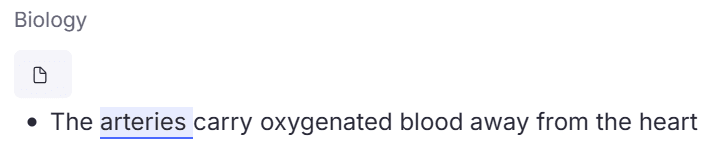
- The back is the same complete sentence but with answers revealed
Cloze deletions are exceptional for conceptual learning, as in medicine, science, etc. They are best used for cause-and-effect sequences, or if you’re a language learner, for learning grammar/punctuation rules.
Example
Look at this example of a cloze deletion type of flashcard below.
The front:
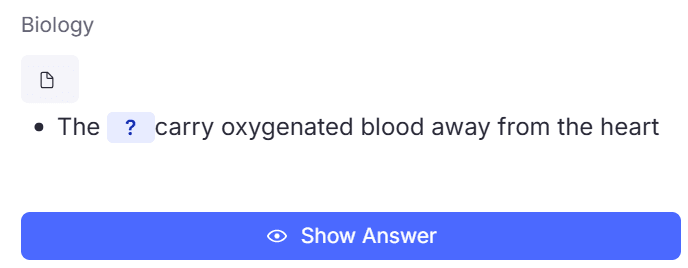
The back:
3. Image Occlusion
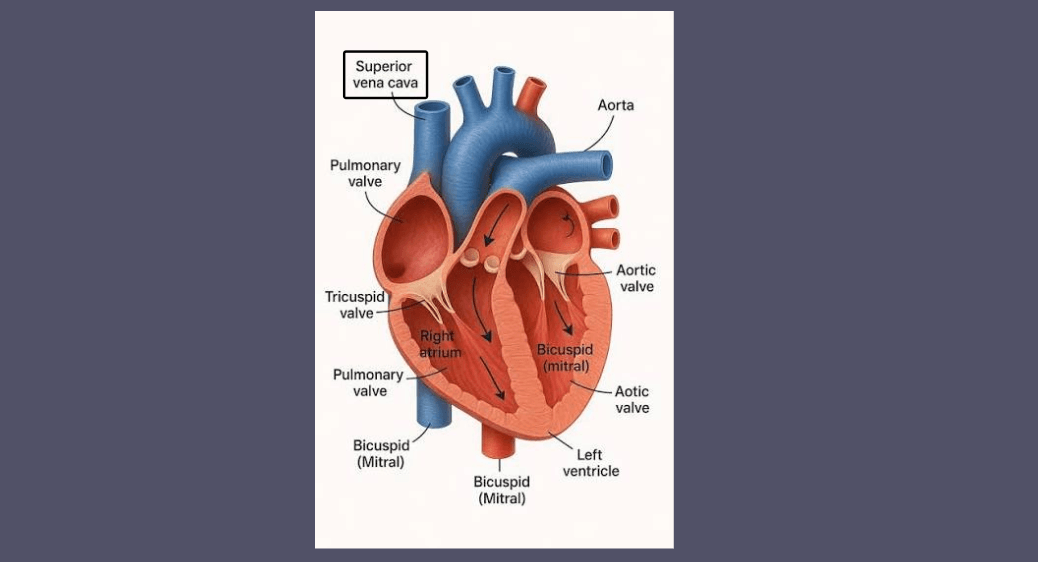
Image occlusion is a visual flashcard type that has an image (a diagram, diagnostic algorithm, map, microscopic slide, anything pictorial) embedded in the card.
On the front side of the card, some labels on the image are occluded by a solid box. You must recall the labels from memory. Once you click on “show answer,” the back side appears with the exact same image, except all the labels are now visible.
It's the gold standard type of flashcard for learning anatomy, histology, geography, structural layouts in engineering, software interface layouts, etc.
Example
Here’s an example of an image occlusion card.
Look at how the front side occludes a label at the top-left corner of the image:
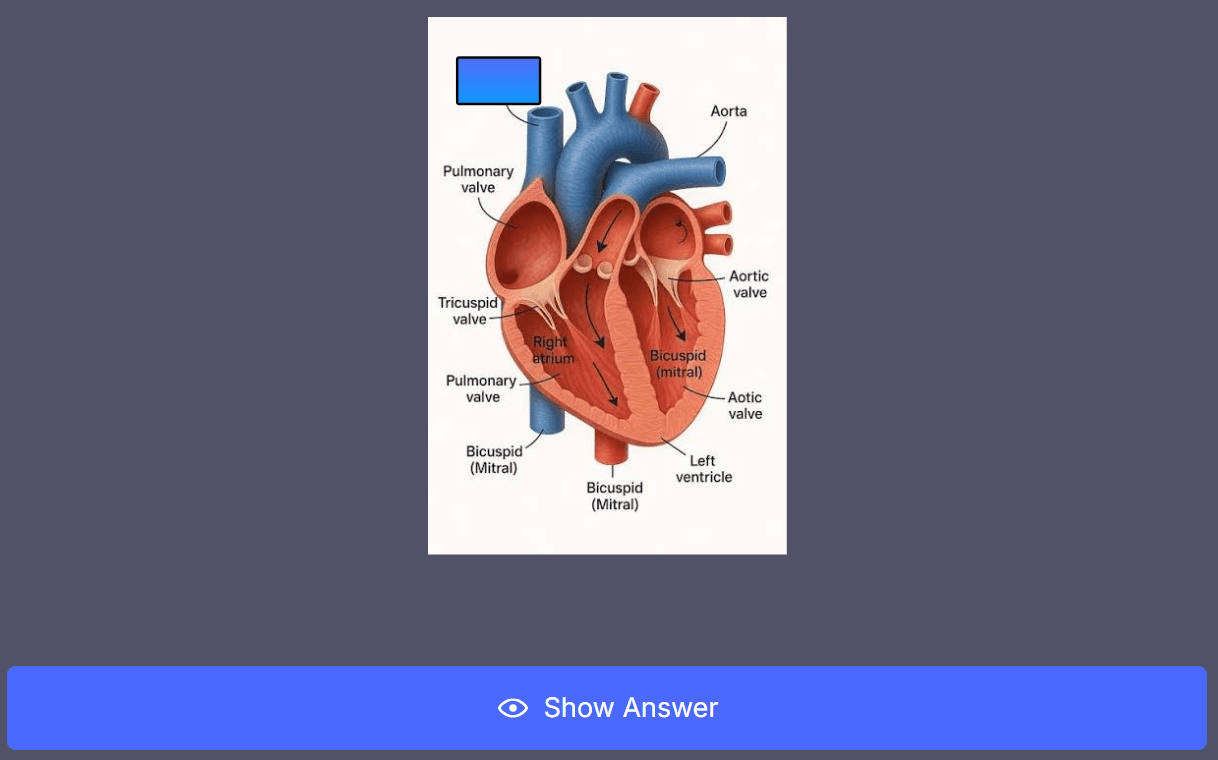
Upon clicking “show answer,” the label is now shown:
4. Reversed/Bidirectional
These are two-sided cards that swap the question prompt and the answer during your study sessions. They help you build strong conceptual connections so that you don’t just memorize isolated facts. Rather, you train your brain to think in both directions.
Digital flashcard tools essentially create two different flashcards testing the same information but with a different order of the front and back sides.
Example
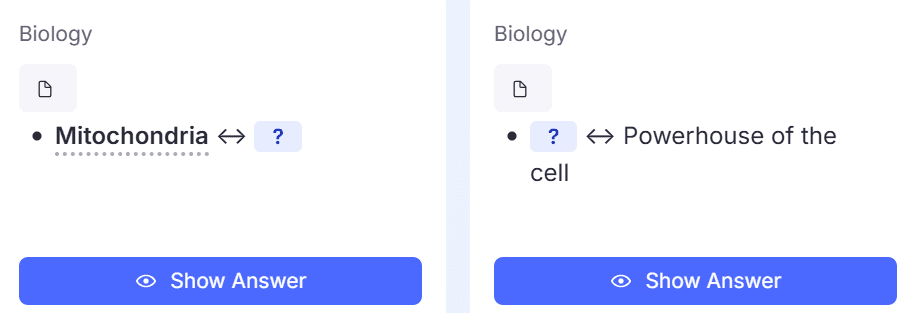
I took the same example card from a basic flashcard and converted it into a bidirectional type.
Here’s how the front side looks for the two cards created:
Here’s the back side:
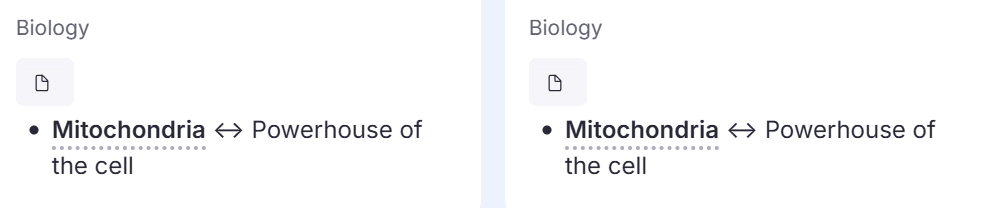
Notice how the back side of the two cards is exactly the same. It is just tested in both directions.
How can you create flashcards in seconds using RemNote?
Now that you know the different types of flashcards, you need to learn how to create flashcards.
There are two ways to do it:
- Manually
- Using an AI-powered flashcard tool
Physical flashcards require you to pick up a pen and paper and write your cards in any of the above types by hand.
Some digital flashcard tools, Anki, for example, also require you to create your flashcards by manually typing them out. You will have to read through your textbook and highlight important facts that you need to learn, then write (or type) them out.
Some flashcard tools, like RemNote, are AI-powered such that they automatically create flashcards for you from the course content you upload to the tool.
AI study tools like RemNote save you a lot of time compared with physical methods, and even with digital tools like Anki.
RemNote gives you both options: either type out your flashcards, or make it faster with keyboard shortcuts for different types of flashcards, for example:
- Type >> or == to create a basic Q&A flashcard
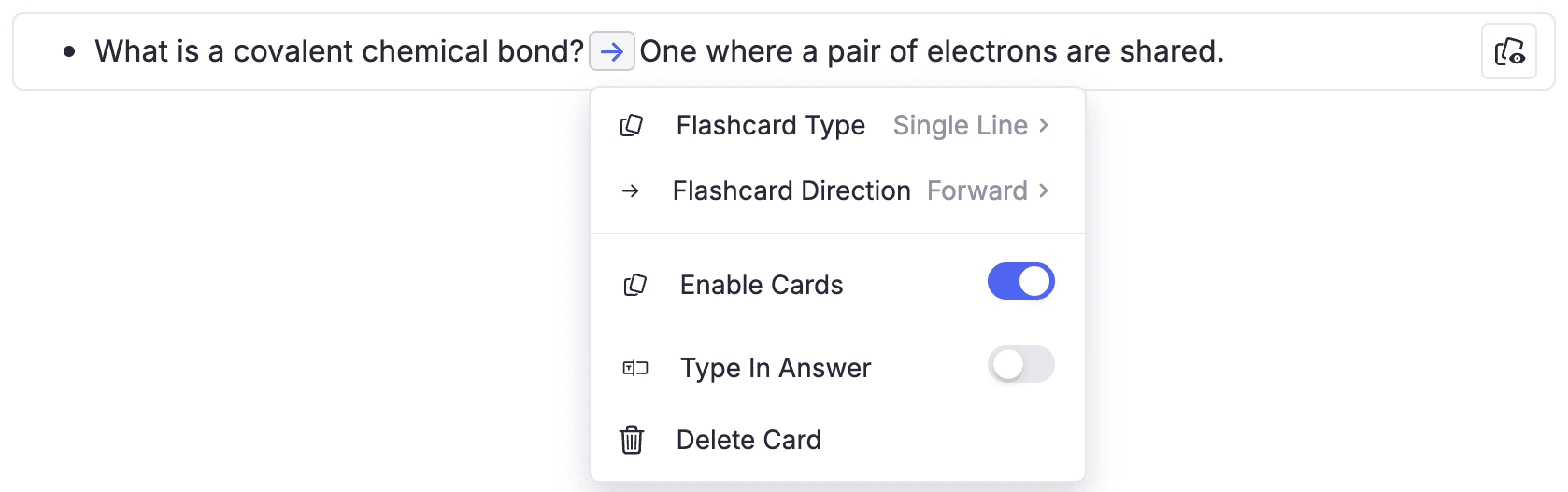
- Type {{, or highlight certain phrases from your text and press {, to create a cloze deletion (fill-in-the-blank) card

- Paste an image on the editor and Ctrl+click on your image (alternatively, Cmd+click on a Mac) to create an image occlusion card
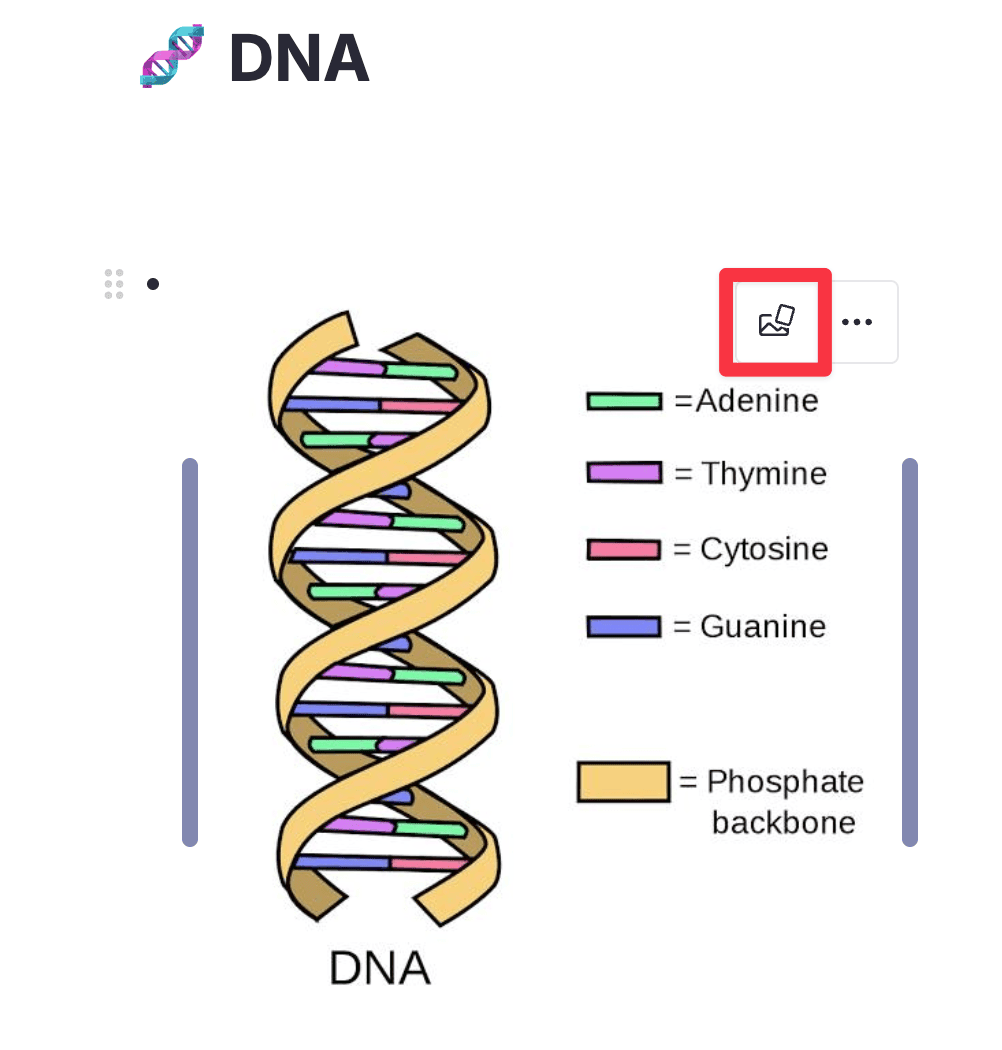
- Type :: to create a reverse/bidirectional concept card, which will be shown to you from both sides at different times

RemNote also gives you options to create some additional types of flashcards. For instance, you can convert a basic card into a multiple-choice flashcard simply by typing A) after creating a basic card.
The basic cards are single-line by default. But if you want to create a multi-line basic Q&A card, all you have to do is type the trigger character three times instead of twice (for example, type >>> for a multi-line Basic card).
If you want to learn how to create all types of flashcards in RemNote, you can watch this video walkthrough that clearly explains how to create each type of flashcard inside the tool.
PDF to flashcards in RemNote
What makes RemNote particularly useful is that you can choose to entirely skip the hassle of typing out the text from your flashcards. Instead, you can use RemNote’s built-in PDF-to-cards feature.
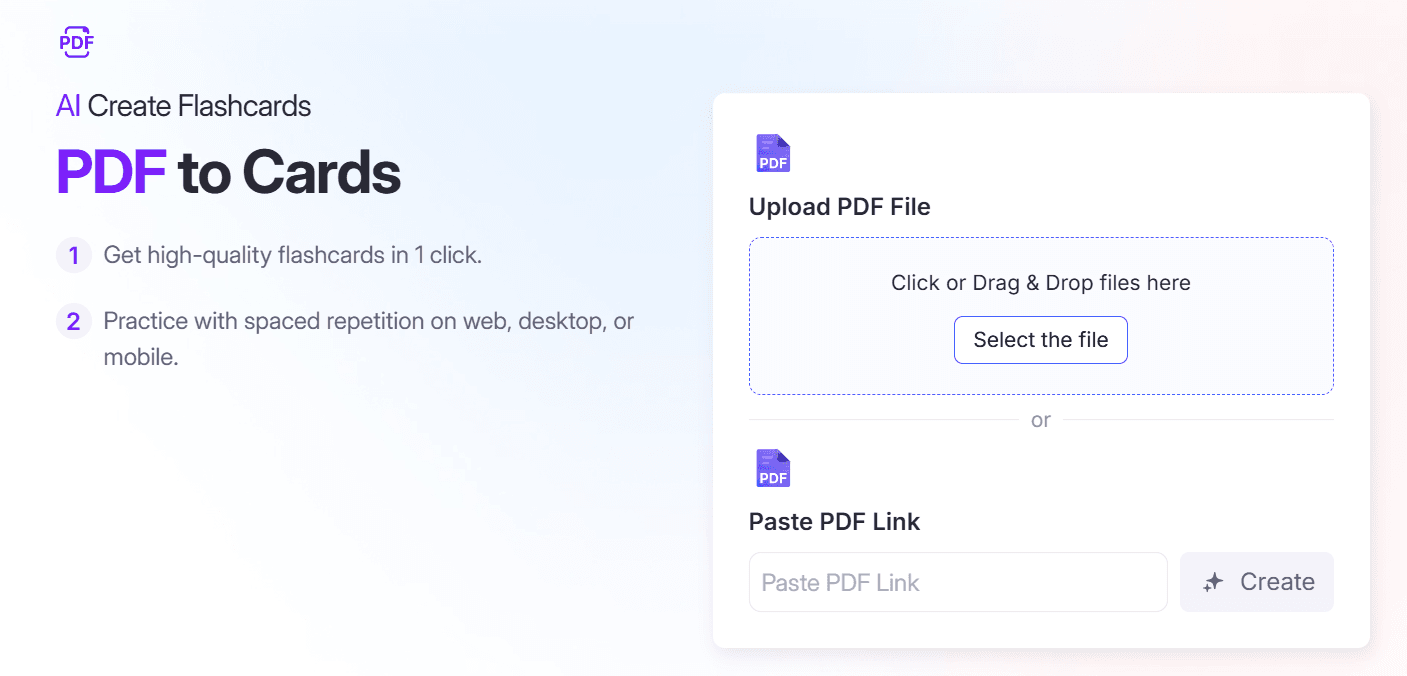
You can turn anything, such as your lecture slides, textbooks, study guides, and more, into flashcards.
To use the PDF-to-cards feature, all you need to do is just drag and drop or upload a PDF document from your study material, or, if the PDF is from the internet, paste its link. Then click on “create,” and you will get instant, ready-to-study flashcards covering every major concept from the PDF.
If you feel like a flashcard created this way is not helpful, you can simply disable it by typing a minus sign (-) in front of it.
This feature of RemNote uses AI at the backend to convert your PDF documents into flashcards. You will get your flashcards created within a minute, and you won’t even have to type the symbols as we discussed above.
Practice your flashcards inside RemNote
Once you have created your flashcards using RemNote, it’s natural that you’d want to practice them.
The study process for flashcards on RemNote follows evidence-based spaced repetition algorithms known as SM-2 and Free Spaced Repetition Scheduler (FSRS).
They, particularly FSRS, space your cards intelligently such that you have to do 20–30% fewer reviews to achieve a good level of knowledge retention.
Ideally, you should let RemNote decide when to show you flashcards based on the algorithm. But if you have an exam coming up and you’d want to revise all of your cards, you can use the “Practice All Flashcards” or exam scheduler feature to maximize your retention in minimal time.
Sign up for RemNote for free today!
FAQs
How many types of flashcards are there?
Structure-wise, there are 4 types of flashcards, namely basic question-and-answer cards, cloze deletion cards, image occlusion cards, and reverse or bidirectional cards. The rest of the flashcard formats you know about or find are variations of these 4 fundamental types. For example, you can easily format a basic card into a multiple-choice or true/false question card. You can also add images, audio, and video to any of these types depending on what you are studying.
Can you use different types of flashcards in the same deck?
You can use different types of flashcards in the same deck, and frankly speaking, most students should. It is highly likely that no one card type can cover everything you need since subjects are usually a mix of everything, including facts, concepts, and visuals. In RemNote, you can create all four types inside the same document using different trigger characters, and every card lands in the same review queue. Also, your spaced repetition schedule works the same no matter how many types you combine.