
How To Create Effective Flashcards (Physical & Digital)

You've probably made flashcards before and felt like they didn't really help you learn much.
That’s what happens when flashcards aren’t created and practiced the right way. And it’s not your fault. We should have been taught what makes a good flashcard or how to review them properly at school.
But most of our schools don’t do that. They either provide you with pre-made flashcard decks or ask you to make flashcards by yourself.
This time, though, you have to make them properly and as effectively as possible. And this guide will show you how.
There are two ways, based on whether you want to create physical or digital flashcards. Both of these card types can have good outcomes. That’s why we’ll discuss the creation steps for both physical and digital flashcards. Let’s start with physical flashcards.
Method 1: Create effective physical flashcards
What you’ll need
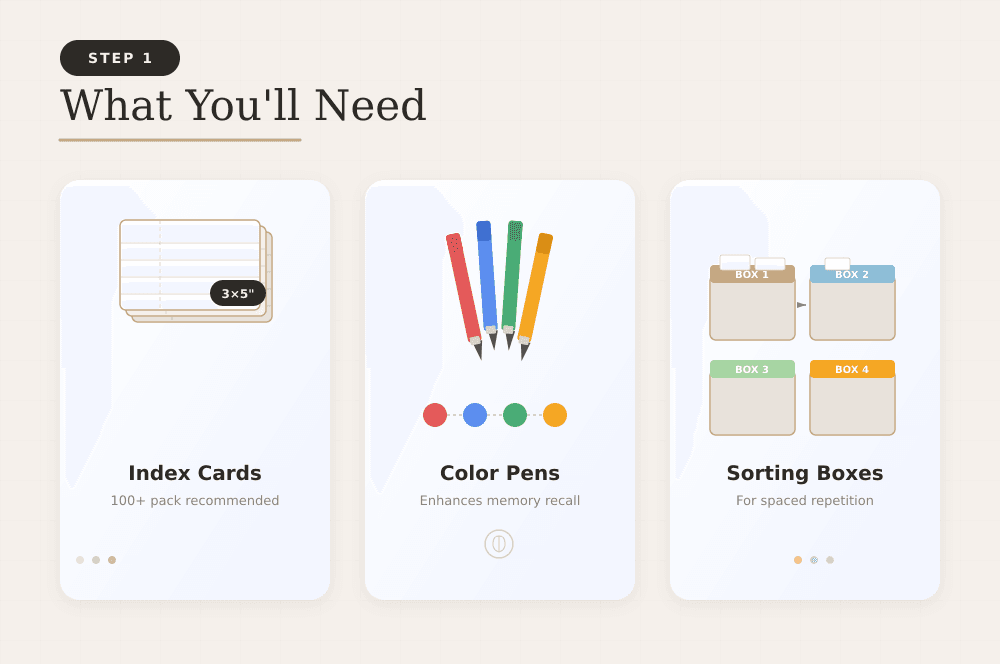
It’s best to have all the stuff in place before you start making flashcards. Otherwise, you’ll be stopping the process every time new materials are needed. Here’s what you’ll need:
- Index cards: The standard 3x5-inch size index cards will be enough for most use cases. You may go for larger cards if what you’re going to practice requires more space. For a start and to be on the safe side, get a pack of at least 100 cards. You can find these cards at any office supply store or online for a few dollars.
- Different color pens: It’s proven through research that different colors help enhance memory performance. If you use different color pens, they can help your brain visually associate colors with information and thus help with active recall.
- Dividers or colored boxes: This part is directly linked to our topic i.e., making flashcards “effective.” You have to get three to four small boxes to implement the spaced repetition system. We’ll get into the details in a later step.
Choose content for flashcards
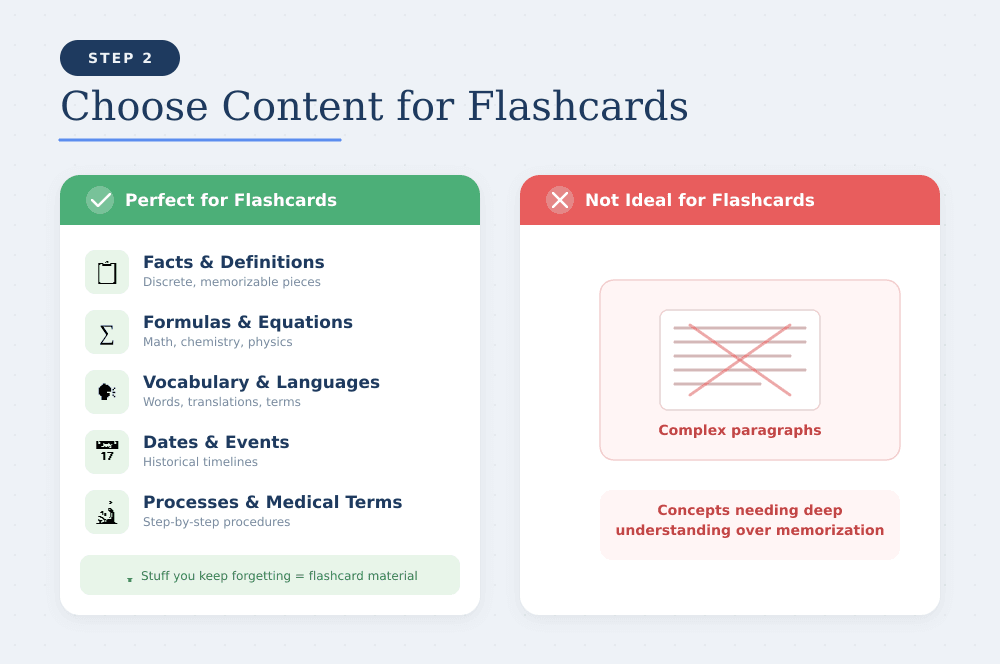
You make flashcards for content that needs memorization. They aren’t suitable for concepts that need understanding more than memorization. So follow this rule of thumb.
Another sign of flashcard material is that it’s the stuff that you keep forgetting when you try to recall it. Read our guide for further explanation of why you should make atomic flashcards.
Typically, the following things belong on flashcards:
- Facts
- Definitions
- Formulas
- Vocabulary
- Dates
- Processes with steps
- Medical terms
- Foreign language words
- Historical events
- Chemical equations
Write one piece of info per card
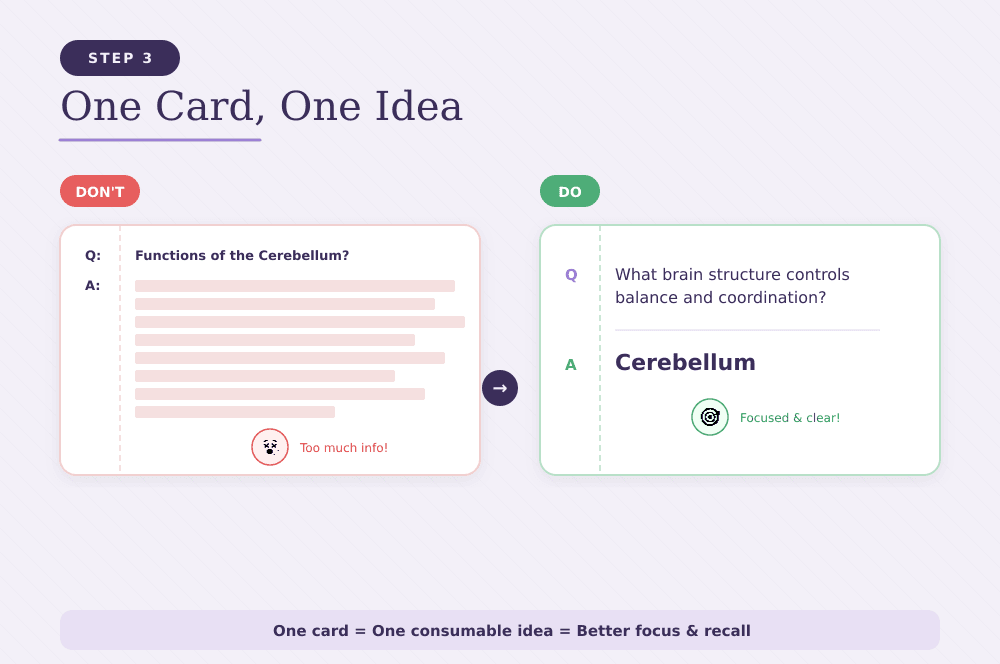
Don’t make the mistake of trying to fit an entire paragraph or multiple related facts on one card. This isn’t efficient.
The rule is one card, one consumable idea for better focus. For example:
- Don’t: List all the functions of the cerebellum → [list of functions]
- Do: What brain structure controls balance and coordination? → Cerebellum
Set up your spaced repetition system
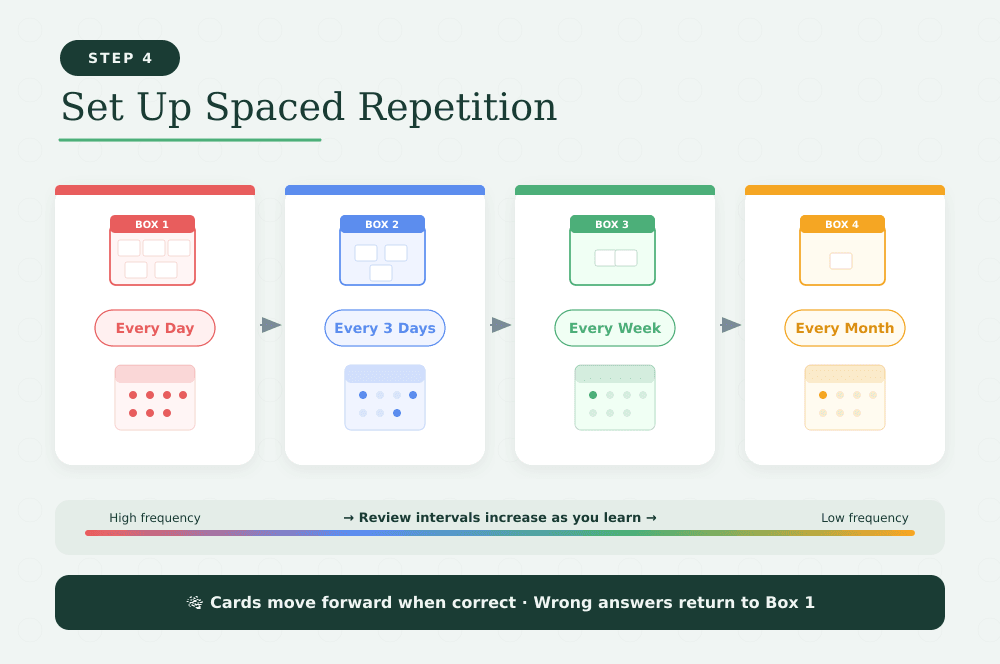
Spaced repetition is the most tested and proven method to move information into long-term memory. The method’s implementation with flashcards isn’t as daunting as the name might suggest.
Remember the boxes we made you arrange? You have to label them something similar to the following:
Box 1: Every day
Box 2: Every 3 days
Box 3: Every week
Box 4: Every month
How to practice the cards
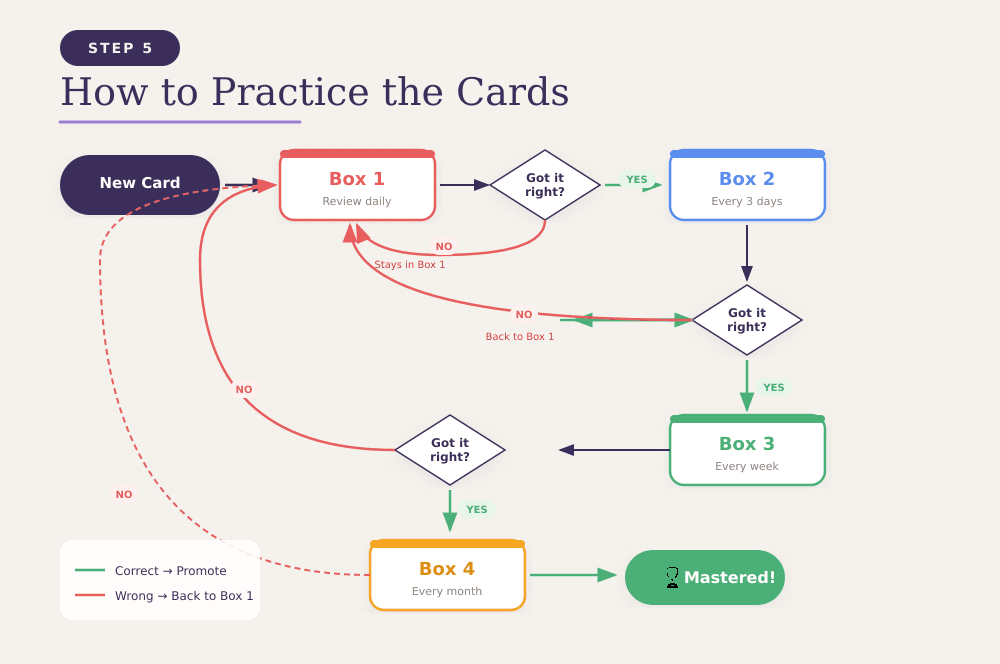
When you first make a new flashcard, it goes in Box 1.
- Every day, you review a reasonable number of the cards in Box 1. If you answer a card right before flipping the card over, move the card to Box 2. If you got it wrong, the card stays in Box 1. Review Box 1 every day if it’s not empty.
- Review Box 2 every three days. The cards you get right are promoted to Box 3. Cards you answer wrong are demoted to Box 1 again.
- Do the same with Box 3 cards. But remember, wrong answers go back to Box 1, not Box 2. Move the rest to Box 4.
- In answering Box 4 cards, the right answers are simply retired because you’ve mastered them (unless you want to practice them a few more times) As for wrong answers, they go back to Box 1.
Method 2: Create effective digital flashcards
Creating physical flashcards takes a lot of time and effort. You may simply not have both, especially for creating flashcards on all the topics you want to learn.
Luckily, technology solved that problem long ago by giving us tools to make the same flashcards digitally. What’s even better is that these tools also handle the scheduling of flashcards for you.
So, you’re saving not just the flashcard creation time, but also the time you’d otherwise put in setting up and running a scheduling system.
The scheduling method can differ between tools. Some stick to the spaced repetition method. Others offer their own unique methods in addition to spaced repetition.
Let’s introduce you to some popular digital flashcard creator platforms and the scheduling algorithm(s) they offer for effective learning.
| Tool | Best For | Pricing | Rating |
| RemNote | Works great for students and learners who want to create flashcards seamlessly while taking notes, without the hassle of switching between apps/dashboards. It's also great if you work with PDFs or want AI to generate cards from your text. | * Free forever plan |
- Pro costs $10/month
- Pro with AI costs $20/month | 4.7/5 on Google Play Store, 4.8/5 on App Store | | Anki | Anki is for users who are long-term learners and who prioritize function over form and want a free, highly customizable flashcard system. | - It is completely free on desktop (Windows, macOS, Linux), AnkiWeb, and Android.
- The iOS app is a one-time purchase of $24.99. | 4.7/5 on Google Play Store, 4.1/5 on App Store | | Brainscape | Learners who prefer a simple, guided study experience where the app adapts to their self-rated confidence level rather than relying on traditional spaced repetition intervals. | * Free forever plan
- Pro is $19.99/month
- Enterprise plan has custom pricing | 4.7/5 on Google Play Store, 4.9/5 on App Store |
1. RemNote
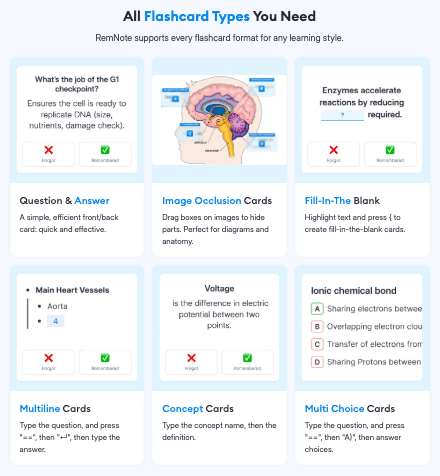
RemNote lets you create flashcards while taking notes by just typing special characters like ">>" in between for a basic question-answer card. That’s just one flashcard type.
In actuality, RemNote supports 5-6 flashcard types, if we don’t count the sub-types. We’ll list how to create them in the next section.
Aside from this method of card creation, RemNote also allows you to annotate PDFs and generate cards from your annotations automatically.
You can also copy and paste text into the platform and let RemNote’s AI generate cards from it. RemNote offers the following scheduling algorithms for practice:
- Anki SM-2
- FSRS
- Exponential (no longer recommended)
2. Anki
Anki is the classic digital flashcards creator tool that is also one of the very first open source tools in this space.
To make cards inside the platform, you have to fill two fields, one for each side of a flashcard.
Anki’s current algorithm for scheduling flashcards is called FSRS (Free Spaced Repetition Scheduler). All said, Anki isn’t exactly user-friendly in terms of modern standards.
They haven’t really modernized their interface the way they should have with time. Therefore, expect a learning curve when working with Anki.
3. Brainscape

Brainscape lets you create flashcards and lets you schedule them using the confidence-based repetition system.
What happens basically is that when you have answered a card, Brainscape asks you to rate your confidence on a scale from 1 to 5.
A 1 means you had no idea and thus that card comes back very frequently. A 5 means you knew it instantly without even thinking.
How to create effective flashcards with RemNote
RemNote has multiple unique features that make its flashcards highly effective.
First off, you can make several types of cards with it and with utmost ease. Here’s how to create all those types of cards while taking notes:
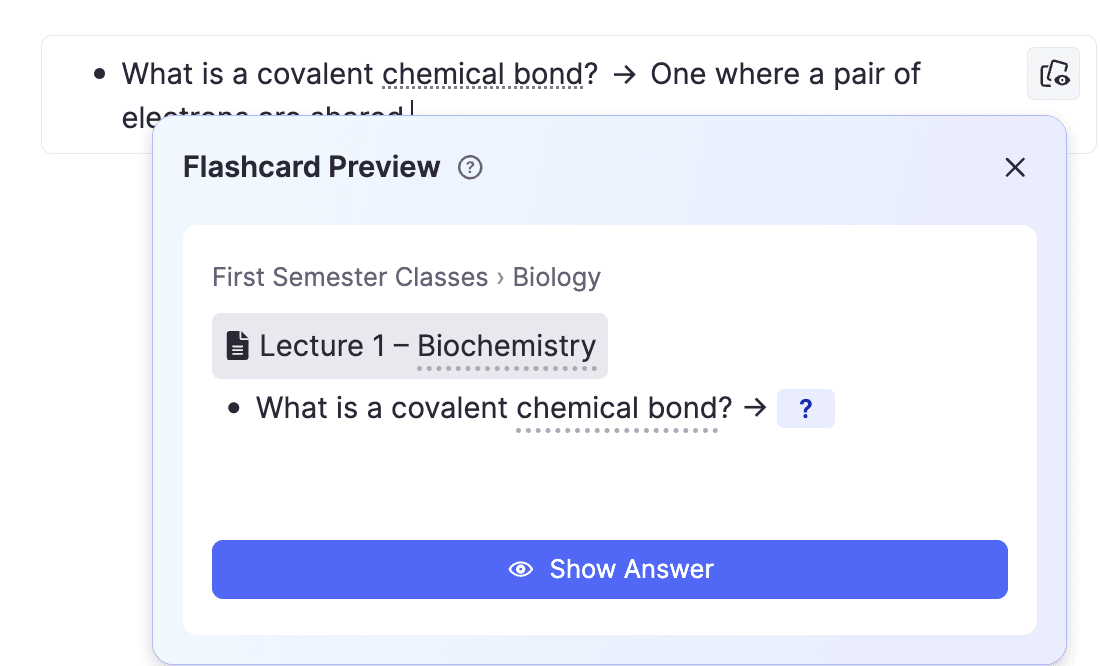
Type >> or to create a Basic card (<< for a reverse one, <> for a bidirectional one). For example, if you wanted to remember what a covalent chemical bond is, you might type: What is a covalent chemical bond? One where a pair of electrons are shared.
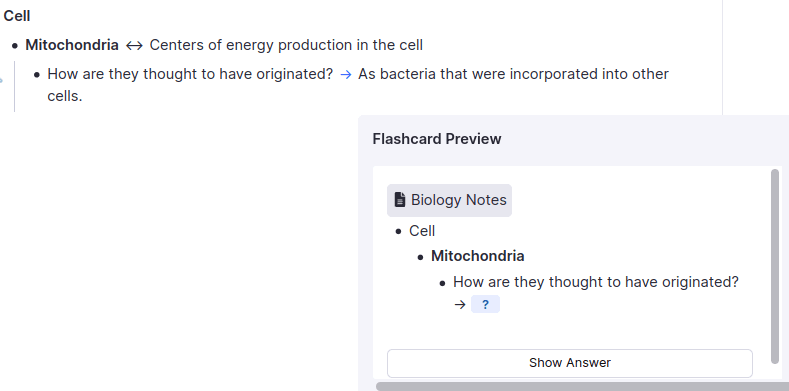
Type :: to create a bidirectional Concept card (:> for forward-only, :< for reverse-only).
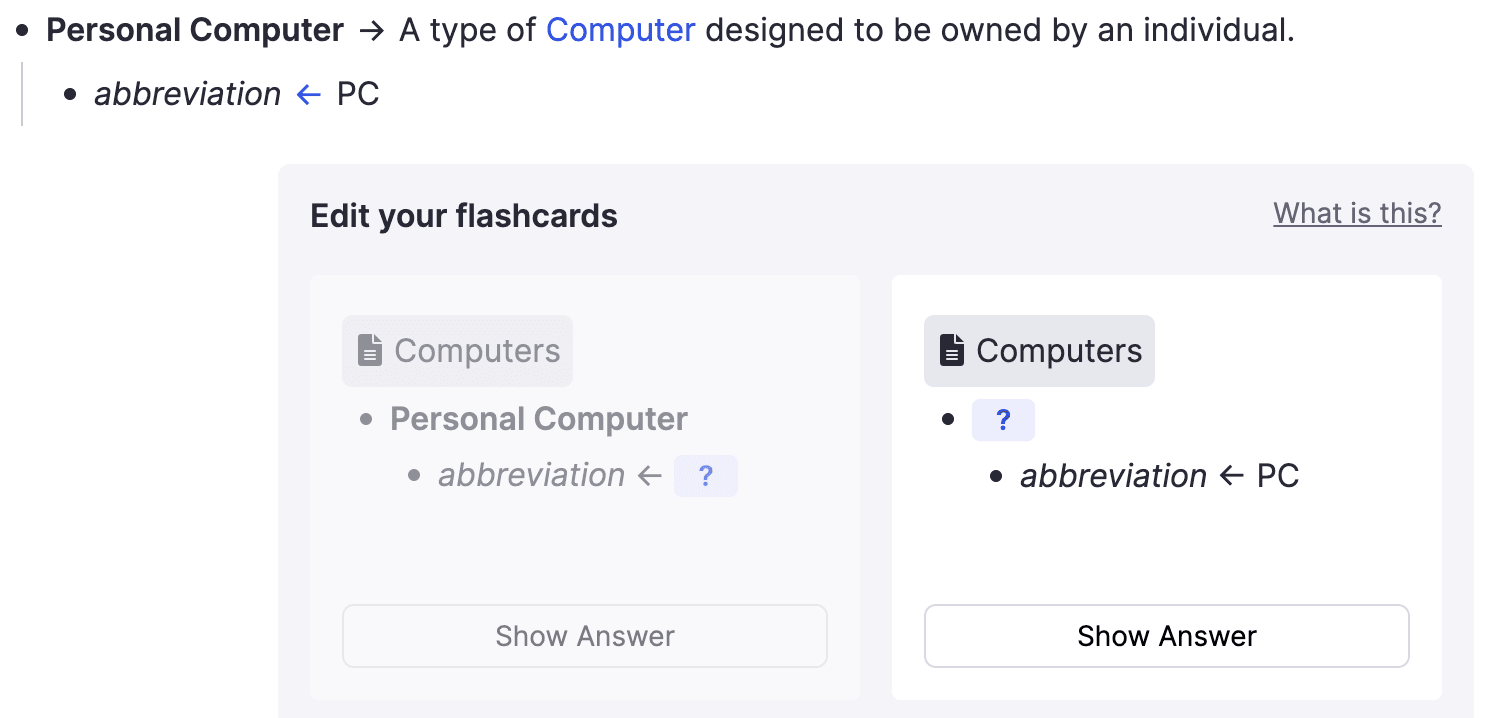
Type ;; to create a Descriptor card (;< for reverse, ;<> for bidirectional).
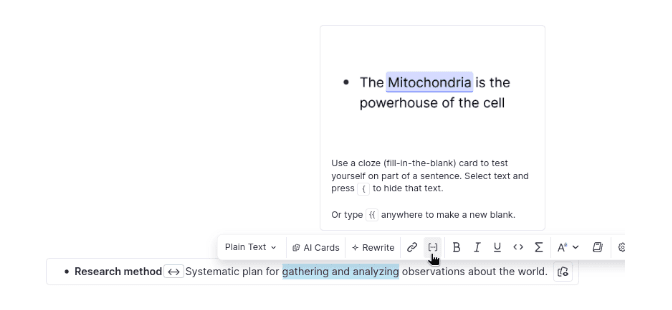
Type {{, or highlight some text and press {, to create a Cloze (fill-in-the-blank) card.
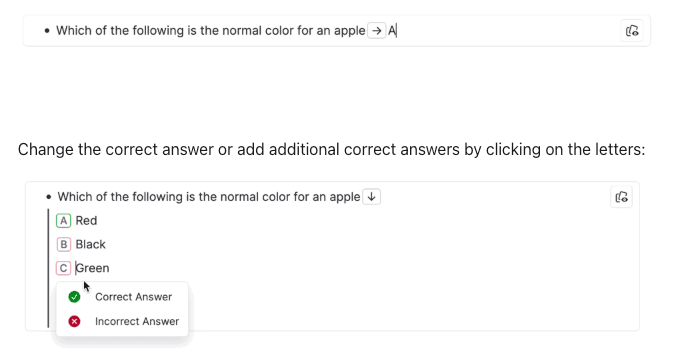
Type A) after creating a Basic card to create a Multiple-Choice card.
Ctrl+click on an image (Cmd+click on a Mac) to create an Image Occlusion card.
Then, RemNote offers at least three ways to create cards.
One way is while taking notes that you just read about.
The other way is by annotating PDFs. The system suggests multiple flashcards to you based on those annotations.
Lastly, you can generate flashcards with AI by giving it a block of text you want flashcards on.
The last factor that makes RemNote’s flashcards the most effective is the availability of multiple scheduling algorithms.
You have the good old spaced repetition method, the Anki SM-2 spaced repetition method, and the exponential method. This flexibility means that you can assign a different scheduler to each one of your documents.
Besides what you just read, RemNote has a lot more flashcard features in its comprehensive flashcards hub. You’ll only get the full picture after using it by yourself.
Sign up for RemNote for free now and experience effective flashcarding.

