
How to Turn Notes Into Flashcards the Easy Way: Top 3 Methods


A Purdue University study by Karpicke and Blunt found that students who used retrieval practice (the mechanism behind flashcards) retained roughly 50% better on a delayed test one week later than students who simply reread their notes or made concept maps.
Notes are great for capturing information, but they aren't a great tool for actually retaining it.
A lot of students take notes religiously, hoping it’ll help them memorize the material. But notes aren’t a medium to memorize things. They lack the active recall that you need for retaining information for the long term.
How should you use your notes for learning, then? By turning them into flashcards. Luckily, there are faster ways to go about it. Some of them take almost no extra effort on your part.
In this article, we'll cover those methods of turning your notes into flashcards and then walk you through how to turn notes into flashcards using RemNote.
3 Methods for making flashcards from notes
Different students take notes differently. But when it comes to creating flashcards from those notes to actually retain information, there are three popular methods.
1. Use a note-taking app that also makes flashcards (most effective)
Out of the three methods, this one is the most time and energy-efficient when it comes to creating the flashcards. But even from a learning-with-flashcards point of view, these apps are the most effective.
The idea of these apps is simple. They are both flashcard-generating and note-taking apps. You take your notes within them, and the app either generates flashcard decks from them based on its own understanding or lets you specify the specific pieces of information that should be turned into flashcards.
There’s a huge benefit to this note-taking + flashcards model of these apps. And that’s the continuity benefit.
Your flashcards and your notes are present inside the same system. So you have the full context around every flashcard. During practice, if you can't quite understand a card even after flipping it and reading the answer, you can trace it back to your notes for its context. However, only some of these apps, like RemNote, offer this feature.
It allows you to see what concept a card came from, what's above and below it in your notes, and how it connects to everything else you've written.
But how do you turn your notes into flashcards in RemNote? There are multiple ways, but the best is the one we just discussed.
RemNote allows you to create flashcards while writing notes (by typing simple characters like >> or == between a question and answer).
Many of us prefer taking notes in books. RemNote also takes care of that by letting you annotate PDFs and create cards from those annotations.
We'll go deeper into how RemNote works later in this guide. For now, just know that this kind of integrated tool is what you should be looking for if you want fast flashcard generation without compromising on quality.
2. Upload your notes into a separate flashcard app
If you’re already using a note-taking app, you can export your notes to a separate flashcard maker to make flashcards.
This method involves more time and effort than the previous one, but it’s doable.
Your note-taking app could be Notion, Obsidian, Google Keep, etc. You copy a chunk of your notes or export the notes to a supported file format and paste/upload them into a flashcard app.
The flashcard-making app could be RemNote or any other that supports creating flashcards out of external docs/text. Yes, RemNote supports this method too, even if you don't use it for note-taking.
RemNote can even turn handwritten notes into flashcards. You’ll have to upload a picture of your handwritten notes to RemNote, and it’ll extract the text from it.
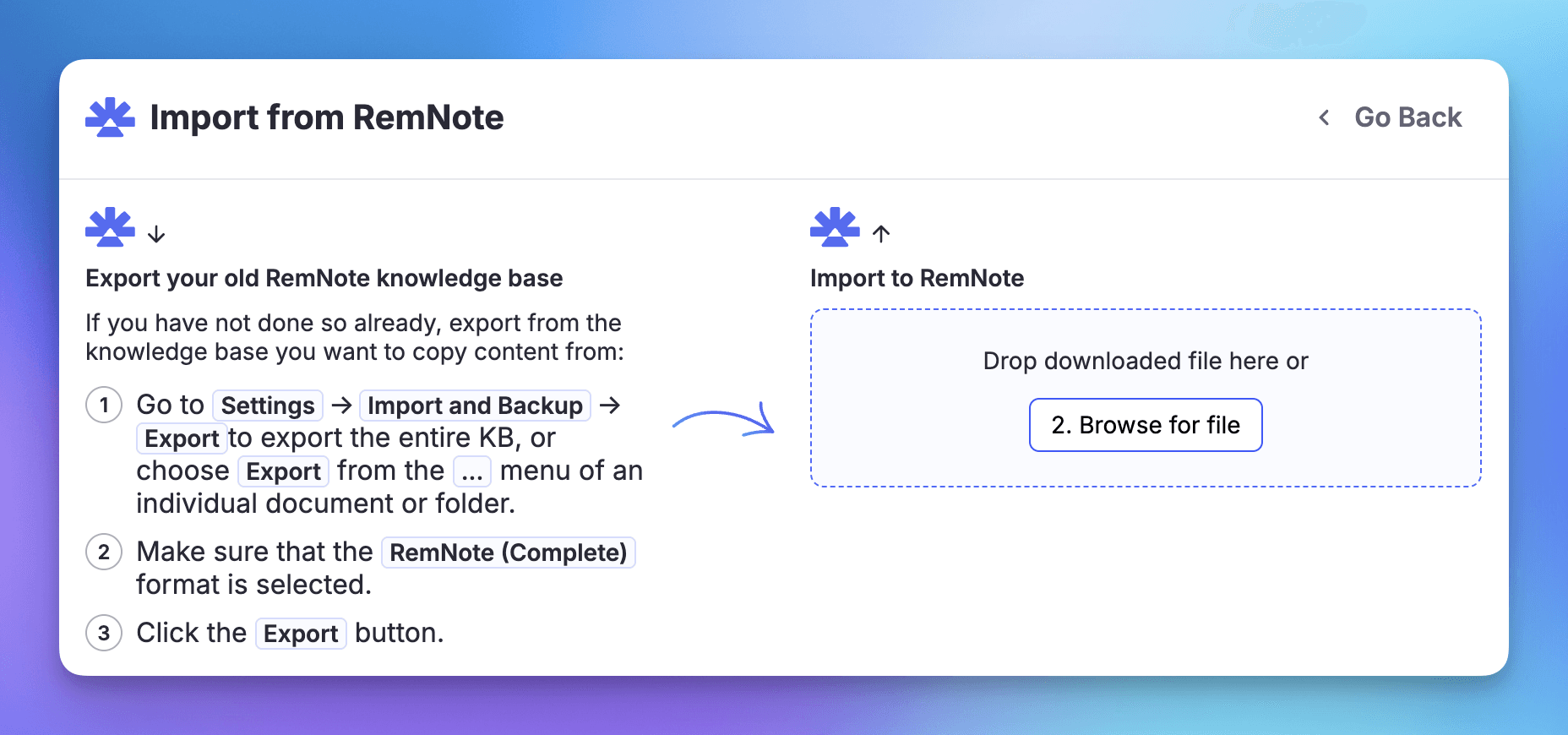
However, this method is still time-consuming, largely because you have to manage two separate setups. You’d have to manually move notes from the note-taking app to the flashcard app every time you take new notes in class.
This method also lacks the continuity benefit. If you have blanked on the answer when reviewing a flashcard, you'd have to switch to the note-taking app or your physical notes, find the relevant section, and then come back.
This might seem like a small annoyance, but it isn’t. You’ll be breaking the flow multiple times in a session.
3. Make physical flashcards from your notes
This one is pretty self-explanatory. We have also covered the steps for creating paper flashcards in a guide before.
You’ll first need to arrange the stationery items, then pick out the important stuff in your notes. Next, you write the content of each flashcard onto index cards by hand.
As you can see, this is going to take a lot of time, given how often you’ll have to sit down to create a new set of flashcards.
Managing these cards is another issue. If you’re going to study your flashcards using the spaced repetition method or the Leitner system, you’ll have to organize them a certain way and manually keep switching the positions of specific cards.
This is why we’d recommend this method the least for the task at hand. You'll be spending hours just to create a usable deck. And that's before you've even started studying.
Creating paper flashcards in this day and age would be counterproductive when we have tools available for that. Those tools can manage the entire process as we just discussed. They take care of the note-taking process, the flashcard creation process, review sessions, and more.
People stopped making paper flashcards long ago when tools like Anki came along. Those who still tried making them have the same experience, such as this user on Reddit:
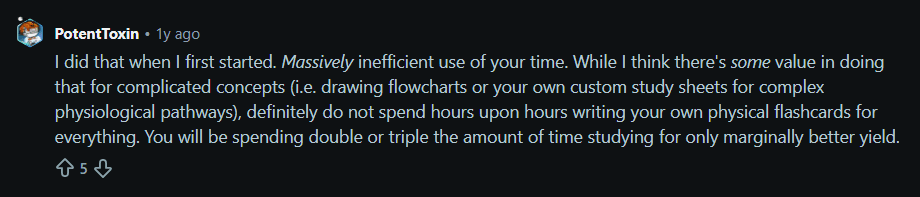
Physical cards also can't be edited easily. If you find a mistake in a card or you want to update a definition after learning something new, you will have to either cross stuff out and rewrite it, or scrap the card entirely and make a new one.
In comparison, editing a card on an app like RemNote is a matter of a few clicks without having to create a new card.
Proponents of paper flashcards would say that paper flashcards are better because they involve the act of writing by hand. This has some truth to it because it actually helps with the initial encoding of information.
But that’s still a small advantage, which further diminishes when you have a large volume of notes to create flashcards with.
How to turn notes into flashcards using RemNote
Having discussed the three methods, let’s now give you something actionable to take away.
We’ll show you three ways you can create flashcards from your notes using RemNote. Each of these methods differs in the format of the notes.
In one method, you take notes within the platform. In the second method, you upload your notes to RemNote. And in the third method, you make flashcards from PDF annotations.
Method 1: Take notes inside RemNote and create flashcards as you go
We briefly mentioned this method before. It’s the most native way to use RemNote.
What you do is you take notes inside RemNote, and whatever seems worth memorizing, you turn it into a flashcard right then and there. You can take both typed and handwritten notes.
To turn a piece of information into a flashcard, you type special characters between the two pieces of text, and RemNote converts that line into a flashcard automatically. Those characters are called flashcard triggers.
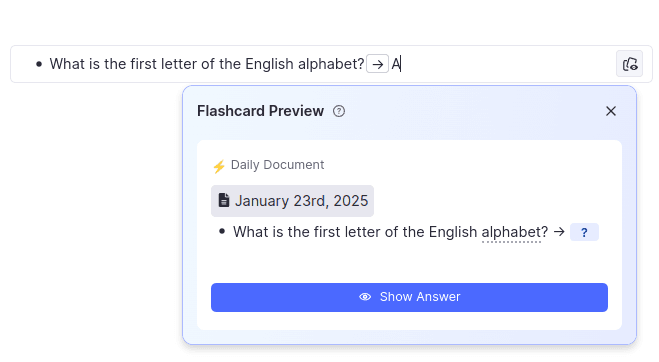
Here's a quick overview of the card types you can create this way and how to trigger them.
| Flashcard Type | How to Create |
| Basic (forward) | Type >> or == between the question and answer |
| Basic (reverse) | Type << |
| Basic (bidirectional) | Type <> |
| Concept card (bidirectional) | Type :: between the concept and its description |
| Concept card (forward only) | Type :> |
| Descriptor card | Type ;; |
| Cloze (fill-in-the-blank) | Type {{ around the word or phrase to hide |
| Multiple choice | Type A) after creating a Basic card |
| Image Occlusion | Ctrl+click (or Cmd+click on Mac) on an image |
Method 2: Import your notes and let AI generate the flashcards
It’s fine if you don’t take notes inside RemNote. You can still bring them into RemNote and use its AI to generate flashcards from them.
Look at the number of file formats that RemNote supports.
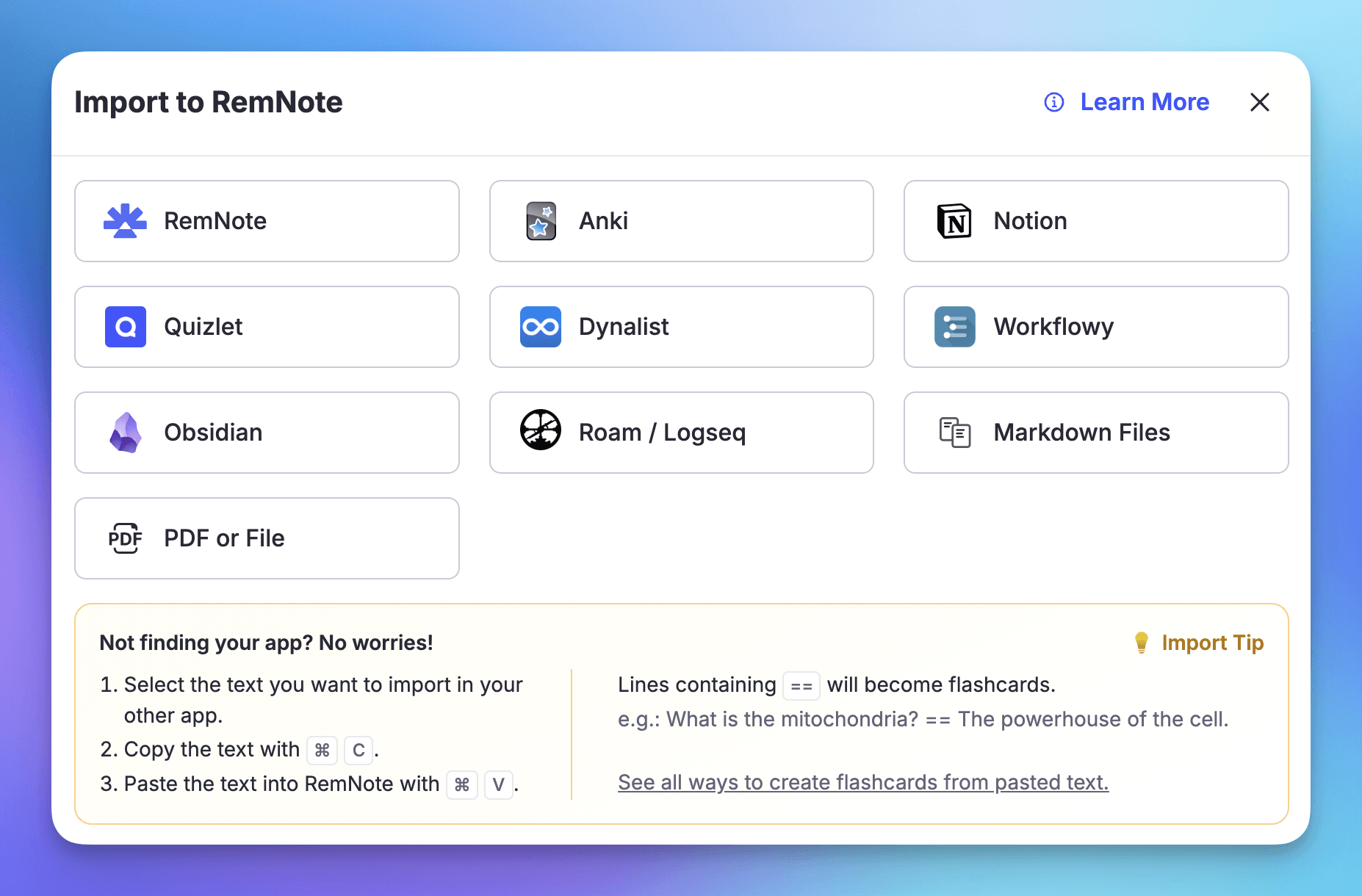
There are two ways the method works, depending on what format your notes are in.
- Text import
- File import (the file formats in the screenshot above + Google Docs, PowerPoint, YouTube, or any webpage)
Method 3: Annotate files and create flashcards from your annotations
This method is for those who take notes from their books.
RemNote allows you to annotate PDFs, web pages, and YouTube videos. You highlight text in those mediums, and RemNote makes a summary of the highlighted text in a side panel.
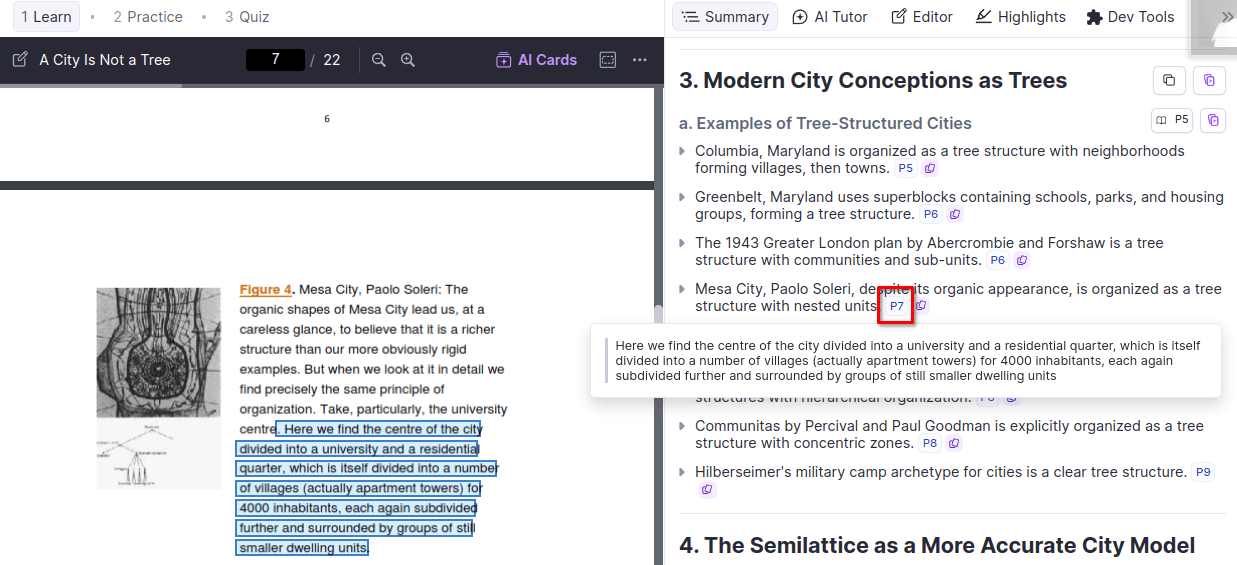
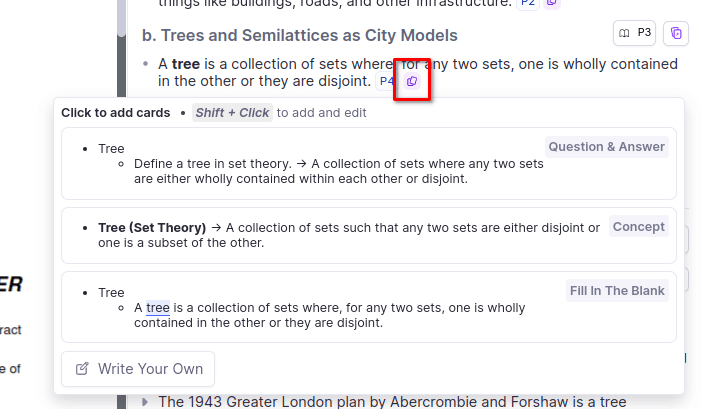
RemNote’s AI automatically makes different types of flashcards from each summary type. It’s up to you whether you want to keep those cards.
Convert your next set of notes into flashcards with RemNote
No matter which method you use to turn notes into flashcards (typing notes, importing them, or annotating PDFs), you will retain more information. And that's what learning is all about.
If you use RemNote to convert your notes into flashcards, the platform makes sure you retain the info as much as possible. It does that by showing you the right card at the right time using spaced repetition.
With the help of the spaced repetition software, you review what you're about to forget instead of what you already know.
We've only scratched the surface of what RemNote can do here. If you want to go deeper into any of the workflows above, our help center walks through them step by step.
Sign up for RemNote for free and turn your next set of notes into flashcards instantly. You'll feel a clear difference by your second review session.