
How to Turn Lectures Into Flashcards for Highest Retention


There’s no shortage of scientific evidence on the effectiveness of flashcards for learning. A review of such studies reports that the use of flashcards directly correlates with higher GPA and students’ exam performance compared to two other study strategies, retrieval practice, and concept mapping.
Students are already convinced of that. They just need a tool that could turn their notes into flashcards without requiring them to manually create every single card from lectures like they have to do in Anki.
If you have similar concerns, don’t worry, I’ve got you!
In this article, I'll show you exactly how to turn your lecture slides into a ready-to-study flashcard deck without writing a single card by hand. To do this, we'll use RemNote, an AI study tool.
But before I walk you through the tutorial, let’s take a quick look at what RemNote is and why I chose it for this task over every other tool out there.
What is RemNote AI Flashcard Creation?
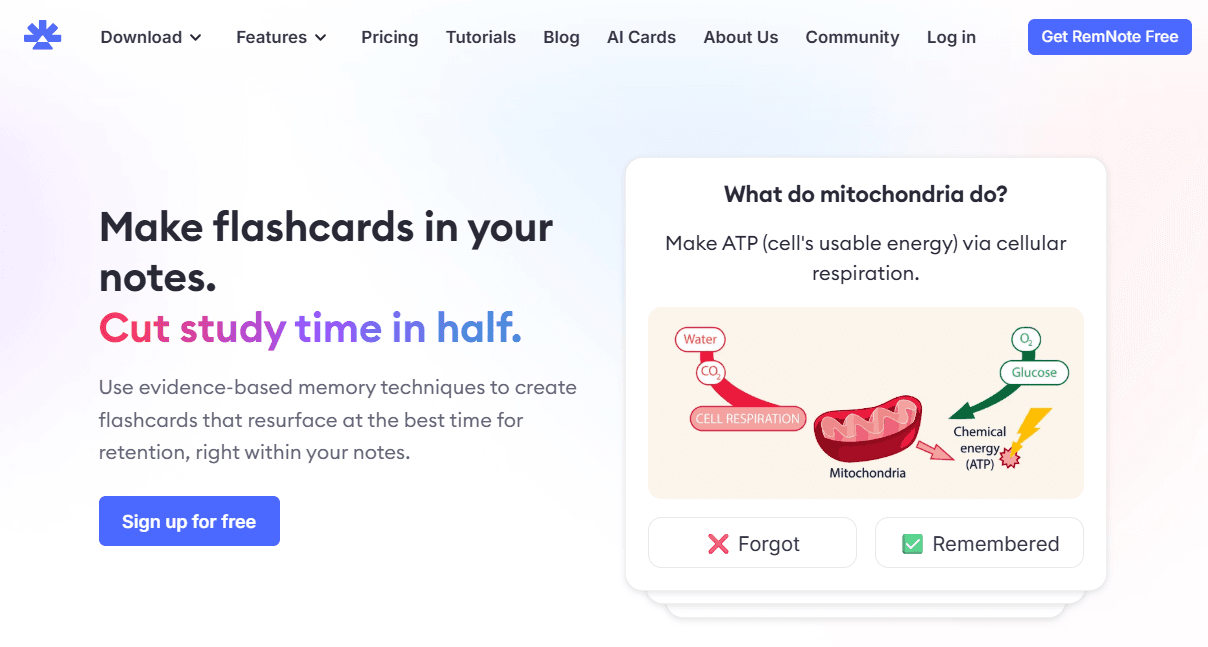
RemNote is an all-in-one study tool where you can consolidate your lectures, notes, flashcards, and quizzes into one dashboard.
It was founded at MIT in 2020 and is now a community of 10 million spaced repetition users.
Currently, the most accurate spaced repetition algorithm that RemNote supports is FSRS (Free Spaced Repetition Scheduler). Anki runs on it too. RemNote uses the FSRS algorithm to schedule your flashcard reviews.
If you’re someone who’d rather have their custom cards made from your lectures than study from a premade deck, RemNote provides the easiest solution.
It allows you to upload your notes and the AI creates flashcards from them within seconds. You can also take notes in RemNote and create flashcards from them in real-time by just typing certain characters (e.g. >>, ::, <>, :<, etc) between your notes.
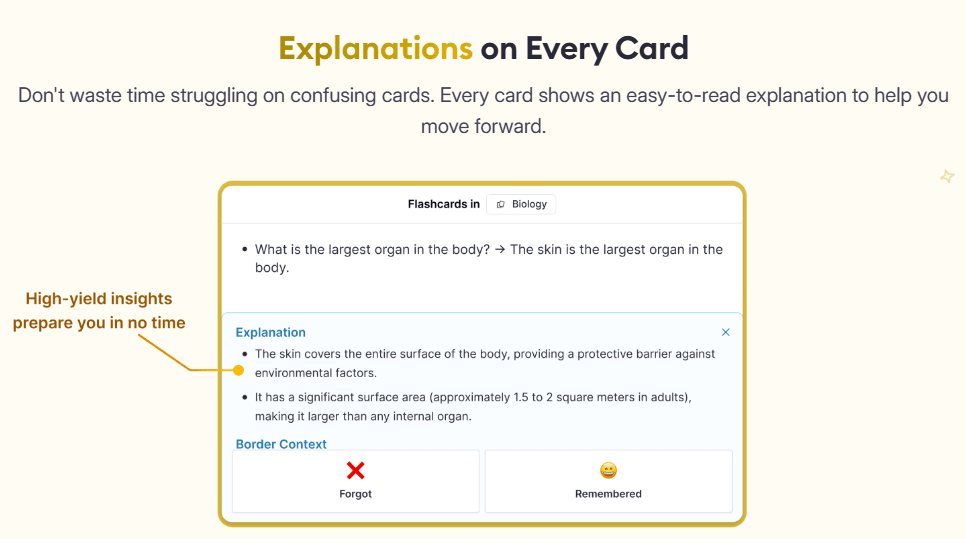
RemNote’s flashcards are also context-aware, meaning they are linked to the source lecture. When you review a card and can’t recall the concept behind it, RemNote can take you back to the original lecture content for deeper learning.
How to Turn Lectures Into Flashcards Using RemNote
Now, let’s go straight into how exactly you can turn your lectures into flashcards in RemNote.
For the purpose of this demonstration, I’ll use a sample lecture slide on the topic “Developmental Delay.”
Step 1: Upload Your Lecture Slides into RemNote
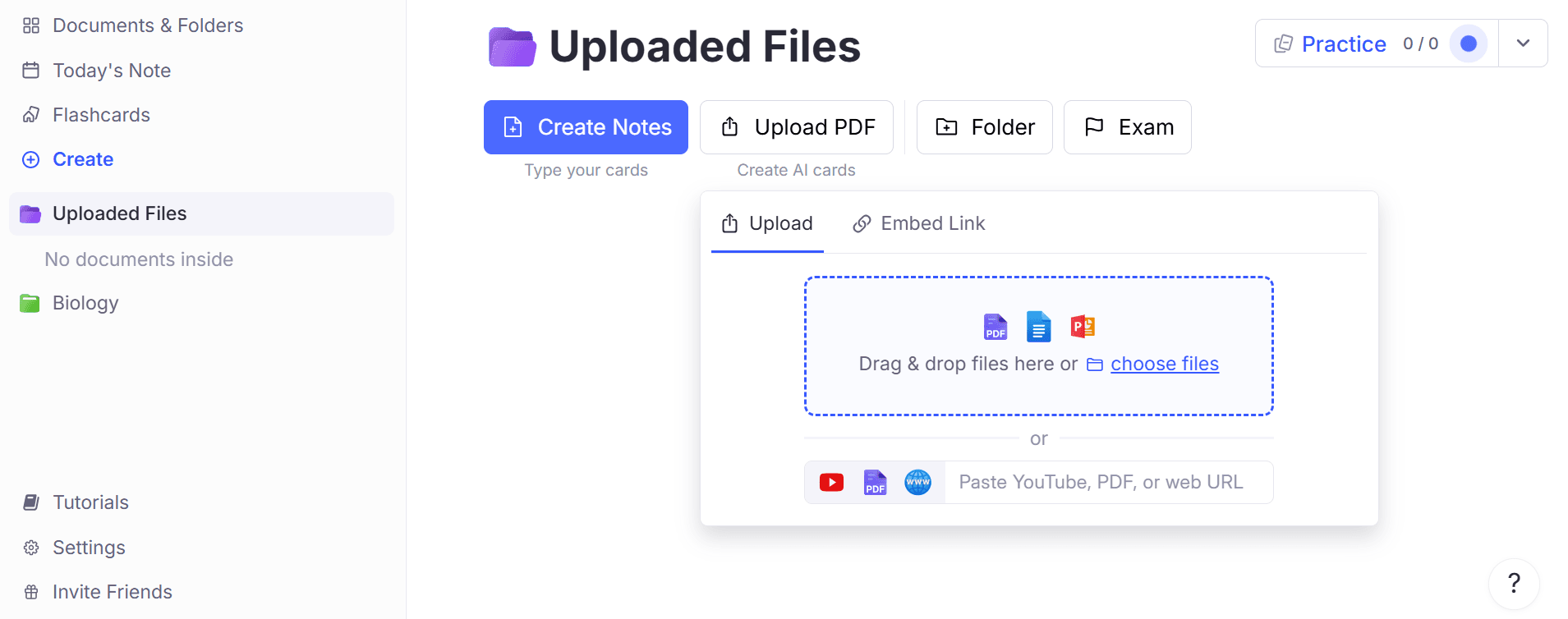
After you’ve signed up on RemNote and you’re now inside your dashboard, you will be prompted to upload your lecture slides.
The menu bar on the left also shows you your study documents that you may have previously added on RemNote. If you’re new, simply click on “Uploaded Files.”
Now, you can “Create Notes,” which essentially means typing out your lecture material and your flashcards.
But since we’re talking about saving time, click on “Upload PDF”.
As you can see in the upload panel, it accepts PDFs, Word docs, and PowerPoint files. Your lecture slides will import just fine regardless of format.
RemNote also allows you to paste a YouTube link, a PDF link, or any web URL if you're studying from an online source.
Step 2: Click on “Learn PDF”
Right after you upload your lecture slides, they show up in your dashboard with a bunch of helpful buttons at the top.
To create flashcards out of this lecture, click on “Learn PDF,” visible in purple at the top right corner of the screen.
The same button will also be used if you want to create a quiz from your lecture or need an AI summary to understand and review the content.
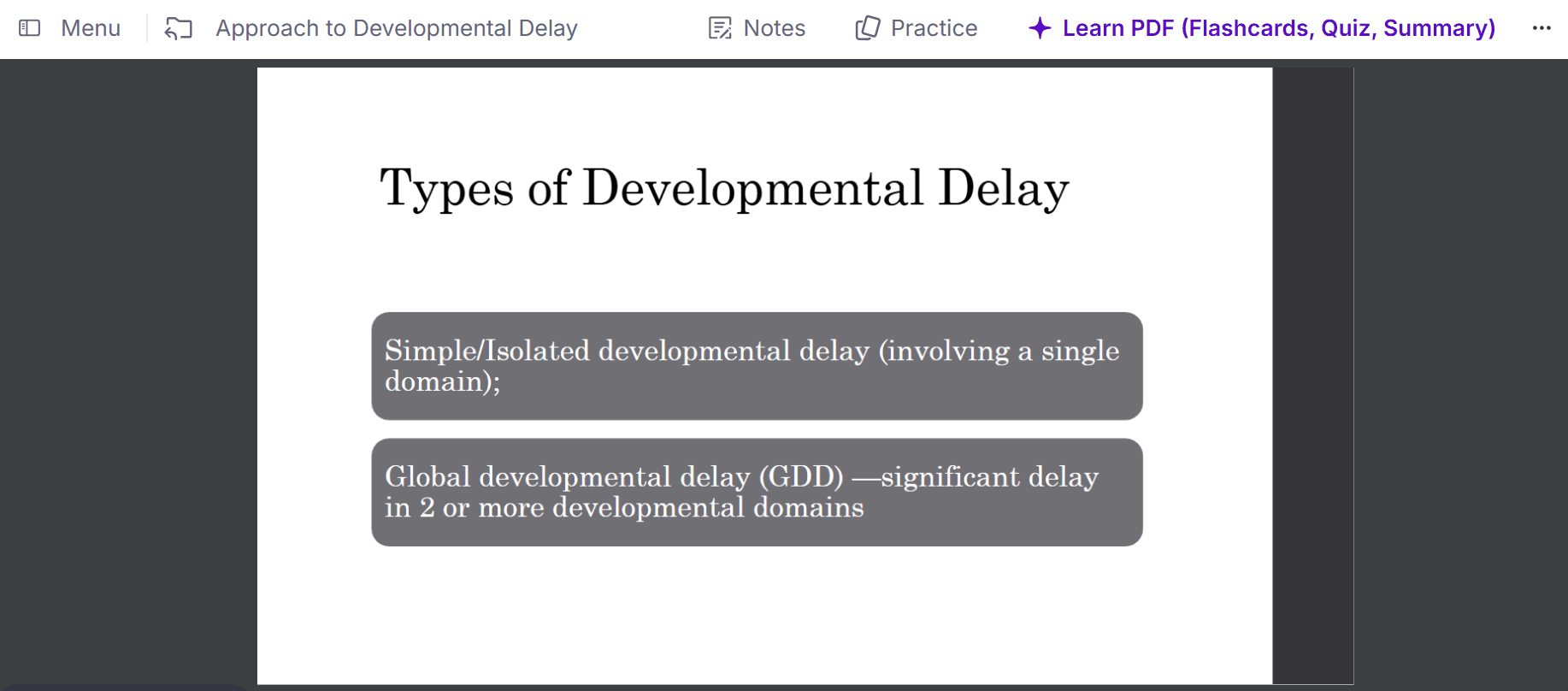
Upon clicking on “Learn PDF,” you’ll see the following dialogue box appear.
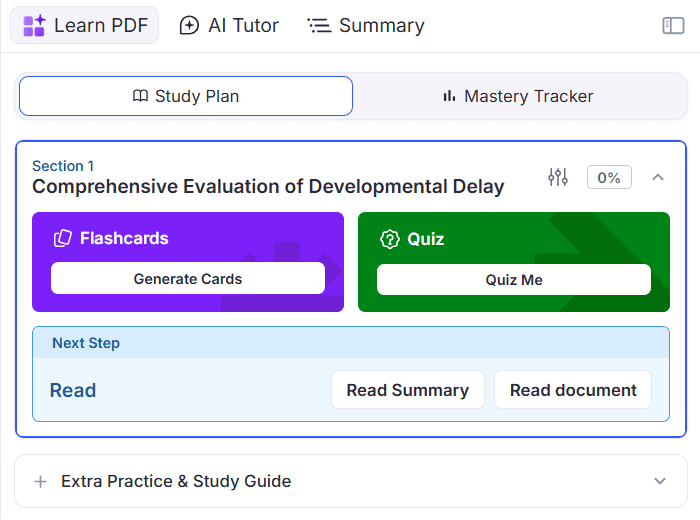
Step 3: Click on “Generate Cards”
Now, you will click on the purple “Generate Cards” button, and AI will then get to work.
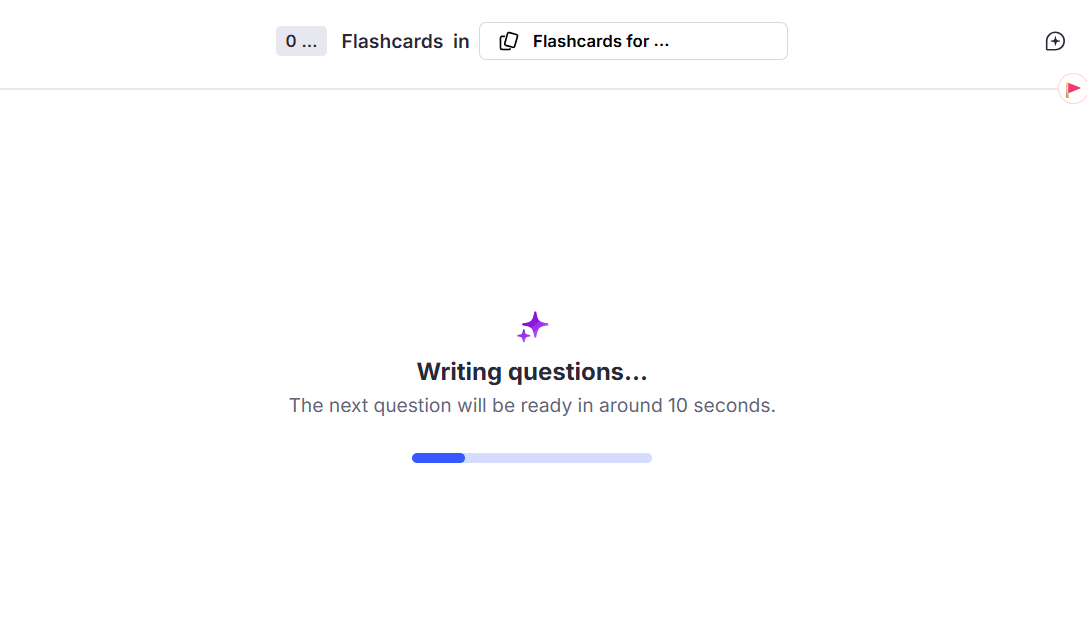
Right after, you’ll see a dialogue box that says “writing questions” as your flashcards are being auto-generated from the lecture you uploaded.
You’ll also see an estimate of the time RemNote will need to generate flashcards, which in most cases, is going to be just a few seconds.
Here’s how a flashcard created from your lecture will appear on the screen:
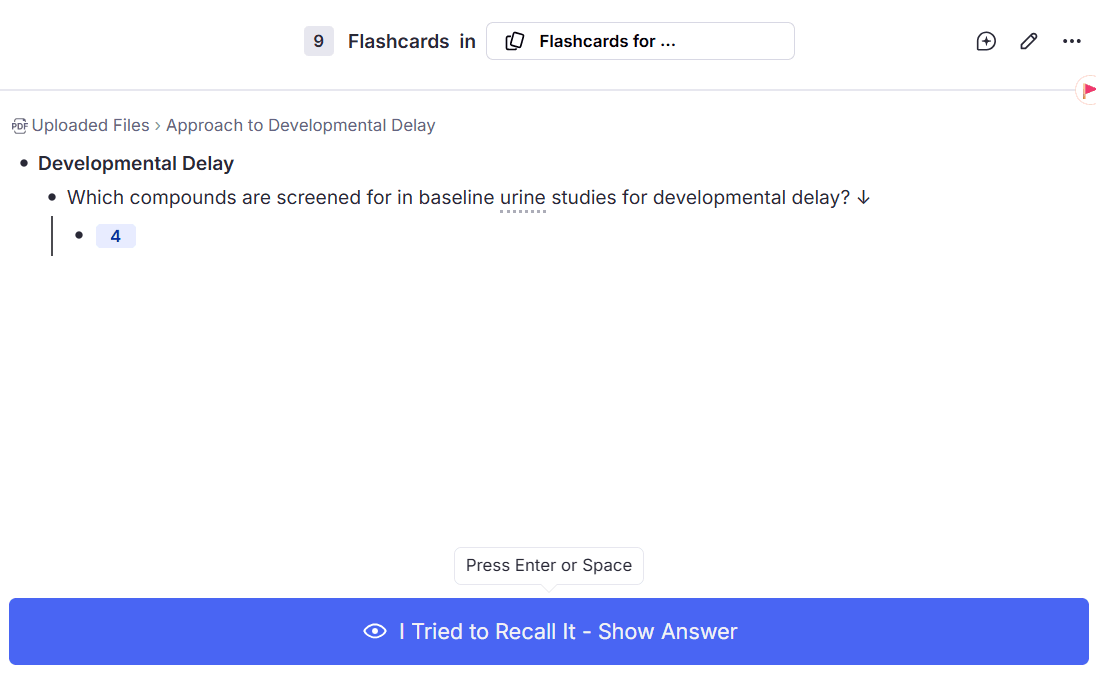
As you can see, it referenced the uploaded file “Approach to developmental delay,” and created 9 flashcards from this lecture.
The number 9 at the top refers to the total number of cards generated.
The number 4 written beneath the first flashcard question tells you that there are 4 items you need to recall to answer the question.
You can first try to recall the answer and then press Enter or Space or click on the blue “Show Answer” button to reveal the answer.
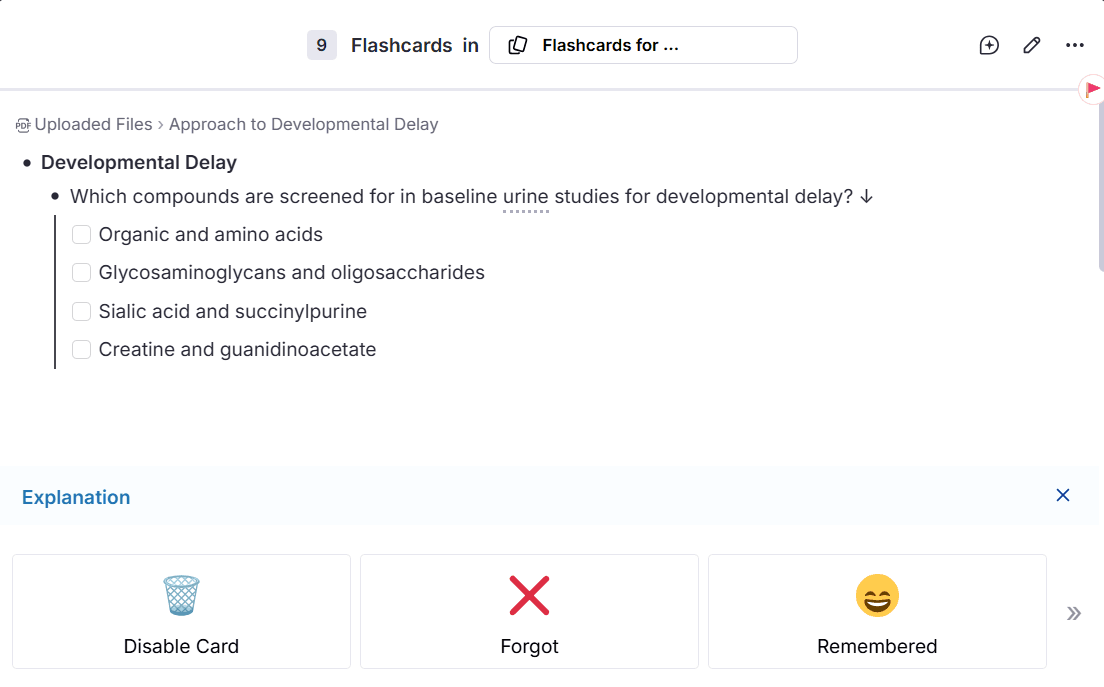
After your answer is shown on the screen, you’re going to select whether you remembered it or forgot it so that FSRS can schedule your reviews accordingly. If you are no longer learning a particular topic, you can disable its cards.
The best feature of RemNote AI flashcards is the “Explanation” of the card that shows up after you hit Space/Enter to answer one.
All you need to do is scroll down the screen to see a detailed description of the topic that was tested in this card.
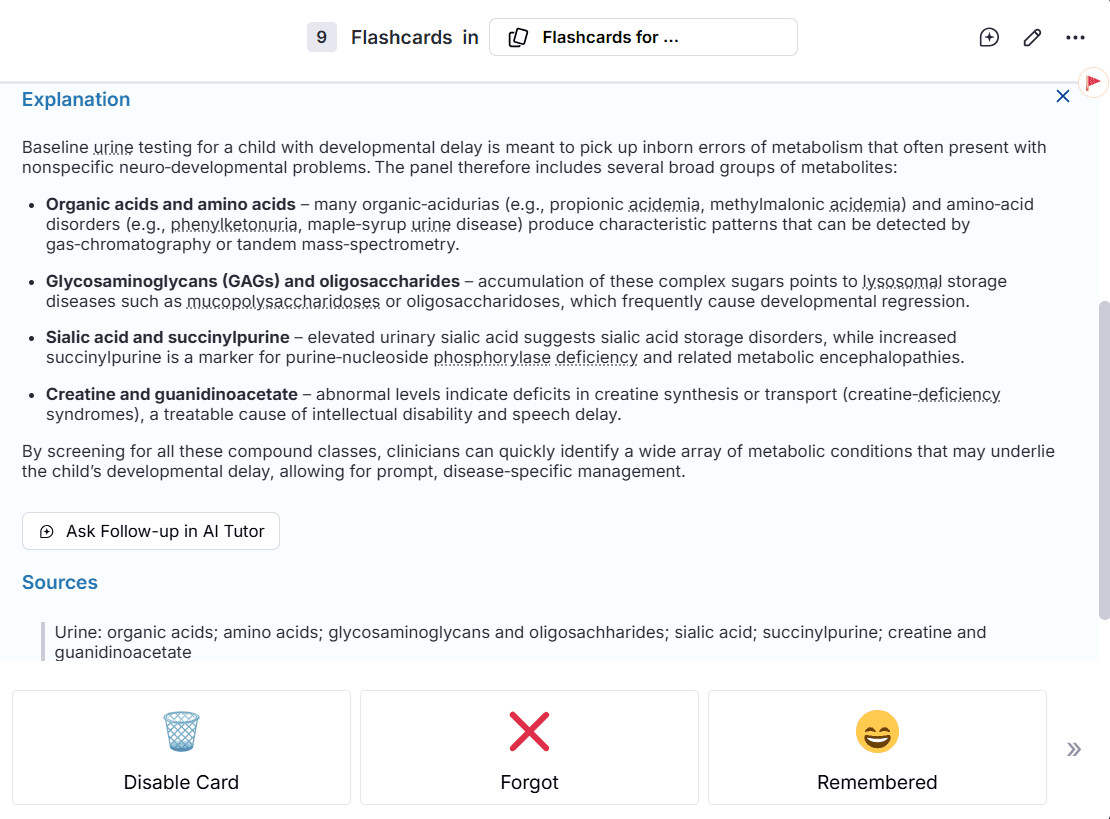
Needless to say, the explanation is based on the lecture you uploaded at the beginning of this process, so you can be assured that you’re learning exactly what you are supposed to, and AI is not hallucinating any content for you.
There’s also an “Ask Follow-up in AI Tutor” button at the very end of the explanation, using which you can click to ask questions about any section you have trouble understanding.
And that’s about it! You can continue studying the flashcards you just got made from your lecture until you’re all caught up.
Optional: Edit Your Flashcards If You Want
When RemNote creates flashcards from uploaded lectures, the cards are entirely based on the material in the uploaded files. But at the same time, RemNote allows you to edit the cards with any further info you want to add into them.
For example, many students like to add mnemonics to help them learn certain content. Use the “Ask Follow-up in AI Tutor” to generate a helpful mnemonic and then click on the pencil icon at the top right corner of the flashcard to edit it. You will be taken to the Notes window:
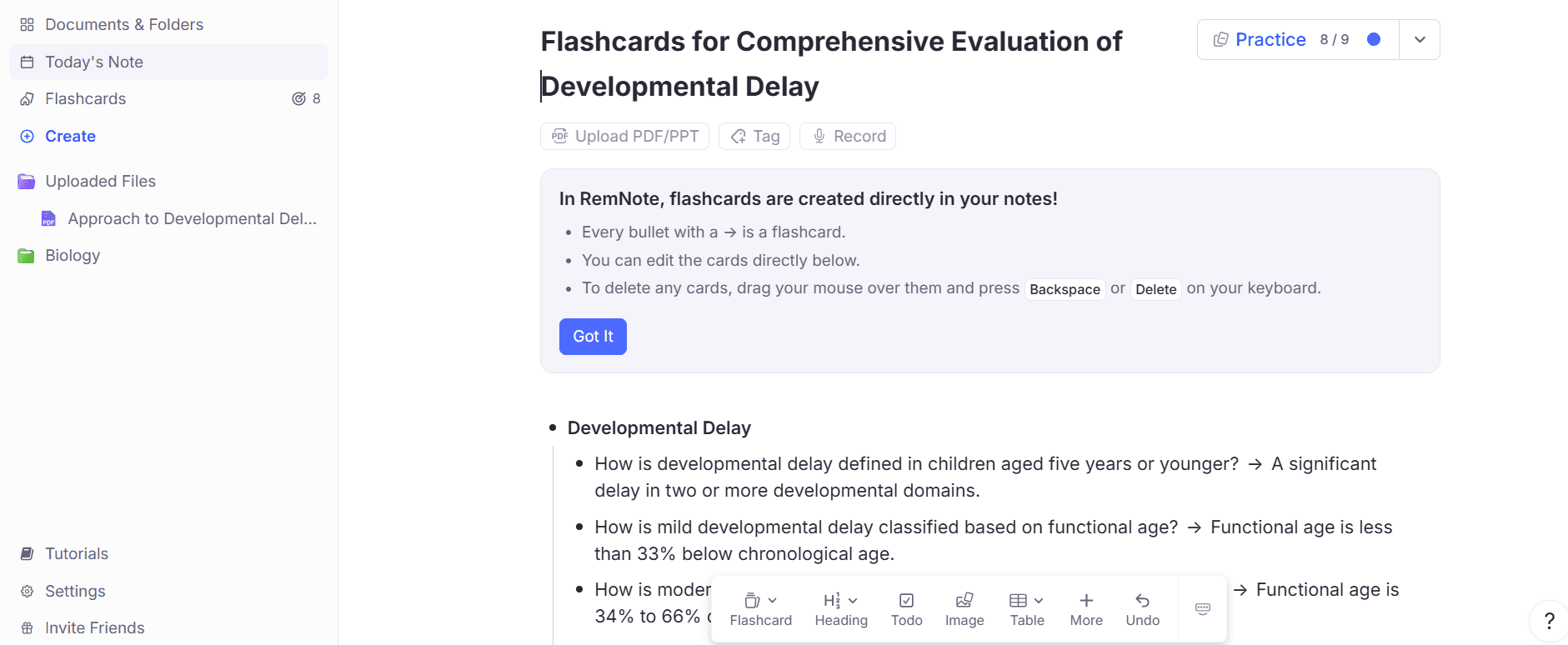
The Notes section lists all the flashcards that were just created from a lecture you uploaded. At the top right, you can see the total number of flashcards, and clicking on it will take you back to the flashcard window we discussed earlier.
In the Notes window, you can see the instructions for editing your flashcards.
- Every bullet with an arrow is a flashcard.
- You can edit your cards simply by placing your cursor wherever you want your changes to be made.
- You can also delete any card you do not like by dragging your mouse over it and hitting Backspace or Delete on your keyboard.
The changes get autosaved. When you’re done editing, click on the blue “Practice” button at the top right corner to go back into flashcard study mode.
And with that, you’ve just turned your lectures into custom flashcards in just a few clicks without having to pay a single dime!
FAQs
How to turn lectures into flashcards for free?
To turn lectures into flashcards for free, upload your lectures to a flashcard-generating app like RemNote, and it’ll make flashcard decks. RemNote allows you to create unlimited flashcards and review them through the spaced repetition algorithm for free.
What is an AI flashcard generator?
An AI flashcard generator tool automatically creates custom space repetition flashcards for you by extracting content from the lectures you upload to it. You can then study the cards as they are or edit them as you like.
Can I convert PDF to flashcards for free?
Yes! RemNote converts lectures into flashcards regardless of the format they are in. It supports PDF, Word, and PowerPoint presentations as well as direct URL links to online lectures. You can upload 20 files a day for free.
Learn Smarter With RemNote AI Flashcards and More!
Turning your lectures into flashcards is just one of many cool features RemNote has in store for you.
Once you're inside the platform, you have a context-aware AI Tutor Chat to use as a personal learning companion. It understands what you're working on and gives you relevant answers only.
RemNote lets you highlight key passages from PDFs and webpages and gives sweet key point summaries at the bottom of every PDF page. Of course, you can turn those into flashcards.
The tool also works while you are on YouTube watching video lectures online to keep active recall running. Use it to mark key moments in videos to revisit them in your highlights panel later. And yes, turn those highlights into flashcards too.
All these features run on the same FSRS spaced repetition algorithm that Anki has validated for years.
Try RemNote for free today!