How to Convert Notes Into Quizzes: A Complete Guide

Research says that test-based learning is far more effective for long-term retention than simply rereading notes. This is known as retrieval practice.
To practice retrieval, you can use dedicated question banks or past paper questions if they are available for your course.
But many courses simply don't provide dedicated question banks at all. In that case, particularly when you're learning from your own notes, finding enough relevant practice questions becomes very difficult.
Fortunately, we have AI in our hands to change that!
You can use an AI quiz generator to convert your notes into quizzes tailored to the exact content you need to learn. Better yet, some tools will go on to explain incorrect answers through AI explanations and really help you understand why a certain answer is correct.
In this guide, I'll explain the exact step-by-step process for converting your notes into quizzes using RemNote. But before we do that, let's take a quick look at what RemNote is.
What is RemNote AI Quiz Generator?
RemNote is a study app founded in 2020 at MIT. It has a bunch of helpful tools that turn the passive process of reading your lectures and notes to remember them for exams into an interactive, active studying process.
The AI quiz generator is one of those tools.
RemNote’s AI quiz generator requires you to upload your lecture notes on the dashboard, after which you get a custom-made quiz for any topic you like. The quiz can be customized in terms of the types of questions, difficulty level, number of questions, etc.
RemNote has an AI tutor integrated within its quiz generator. For every quiz question, you can request an AI explanation that explains the concept tested in the question you got wrong. These explanations are extracted straight from the notes you uploaded, so you can be assured that AI is not hallucinating any information.
The quiz generator allows you to practice questions in either study mode or test mode.
Study mode allows you to see the correct answer and explanation for every question one by one as you go. Test mode is more for times when you want to test your knowledge under exam-like conditions. You have to answer all questions in one go, and you can see your score at the end of the test.
Now, let’s go straight into how you can create a quiz from your notes using RemNote.
Steps to Generate Quizzes From Your Notes
RemNote has a fairly simple workflow to convert notes into quizzes.
For this demonstration, I’m using the publicly available IB Biology notes from Save My Exams for the topic “Photosynthesis.”
Here are the steps you need to follow.
Step 1: Upload or Paste Your Notes on RemNote
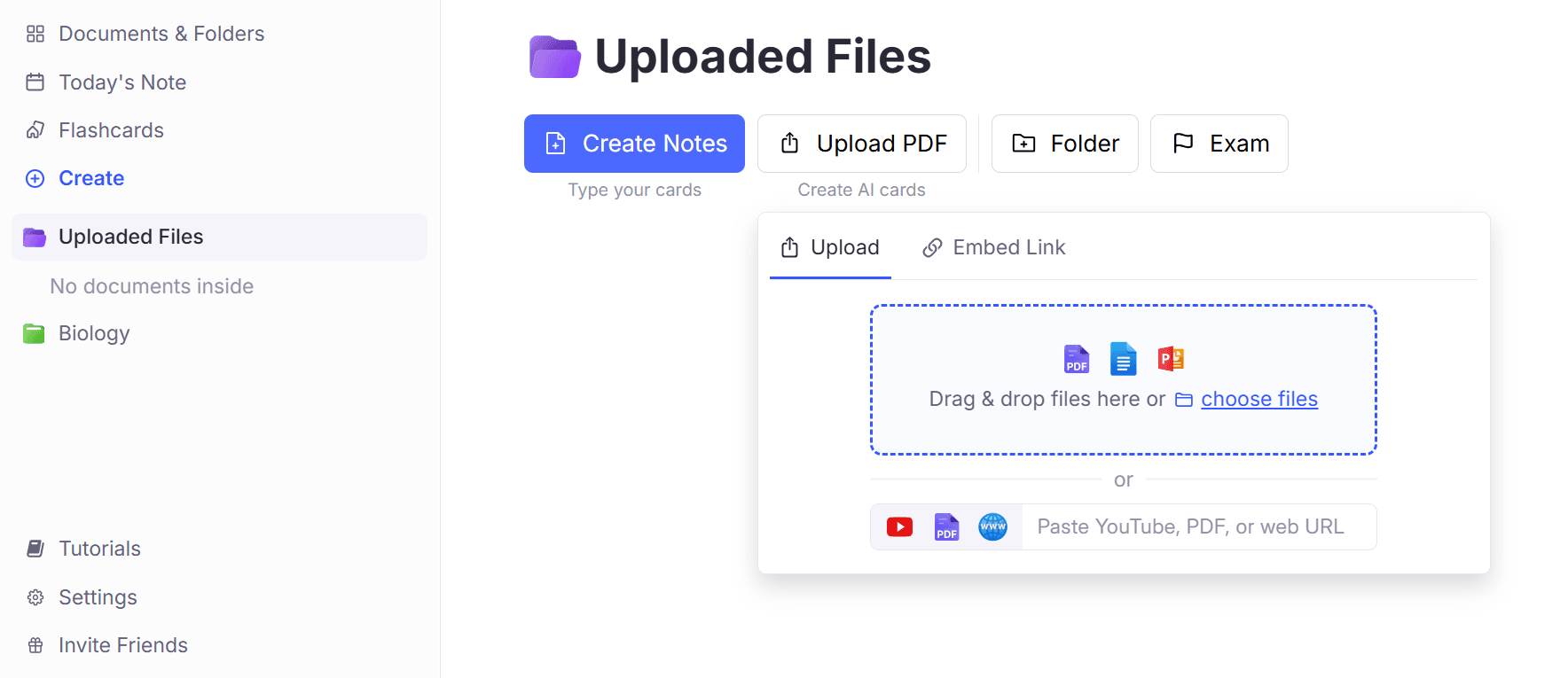
First and foremost, you need to have your notes uploaded on RemNote after you’re logged in. Click on the Uploaded Files section from the left sidebar, and you’ll see a window where you can either:
- “Create Notes,” i.e., type them out on the blank window
Or,
- “Upload PDF” which allows you to drop your notes on RemNote. Even though the button says PDF, it accepts Word files and PowerPoint presentations too. You can also paste a URL of any online notes resource you’re using.
Step 2: Click on “Learn PDF”
After your document opens in RemNote, click on “Learn PDF” at the top of the right-hand panel.
You will now see a split-screen workspace. The notes will appear on the left and the learning tools will appear on the right. RemNote will ask you how well you already know the content with 3 options:
- Haven’t learned it yet
- I have a basic understanding
- Know it well and just want to review
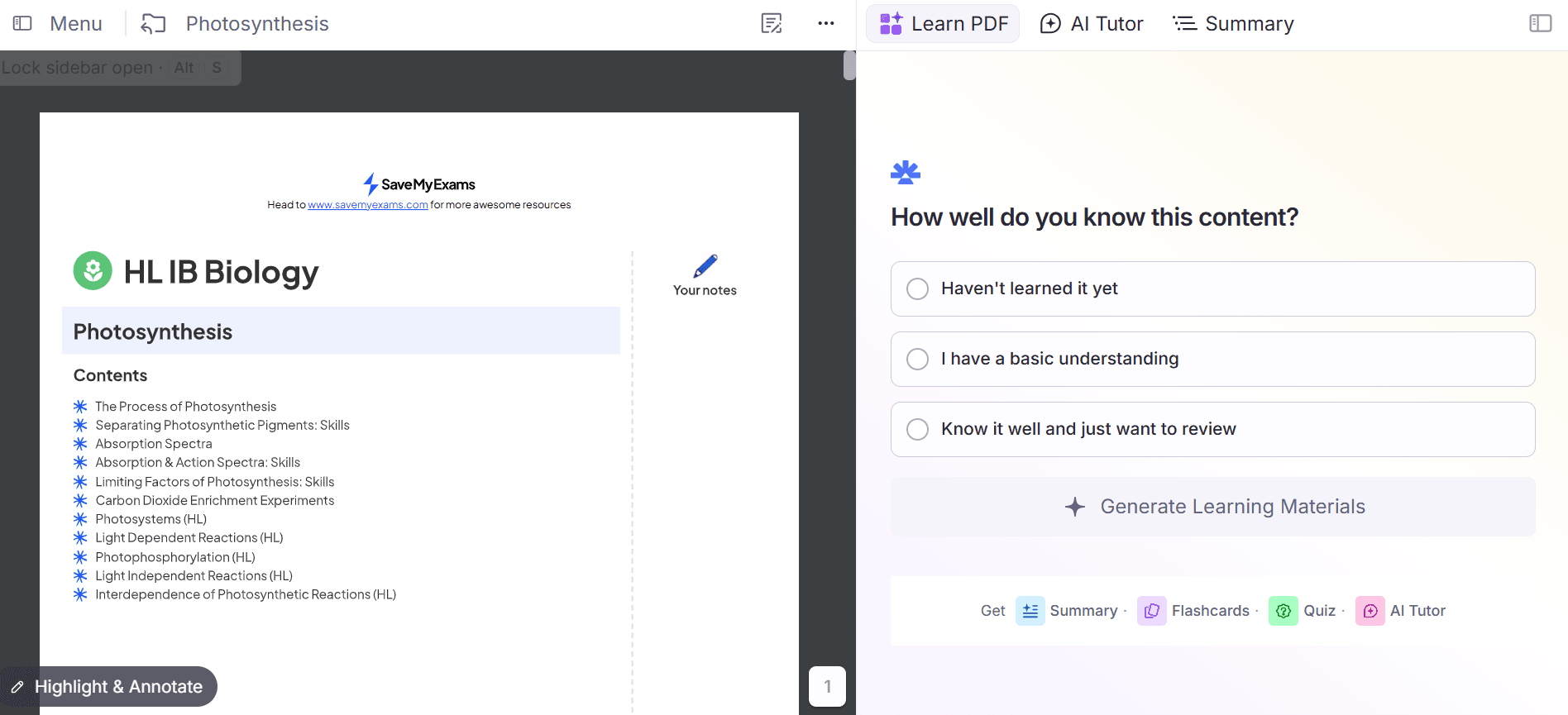
Since you want to convert these notes into a quiz to assess how well you’ve learned it, you could click on “Know it well and just want to review.”
Then, click on “Generate Learning Materials.”
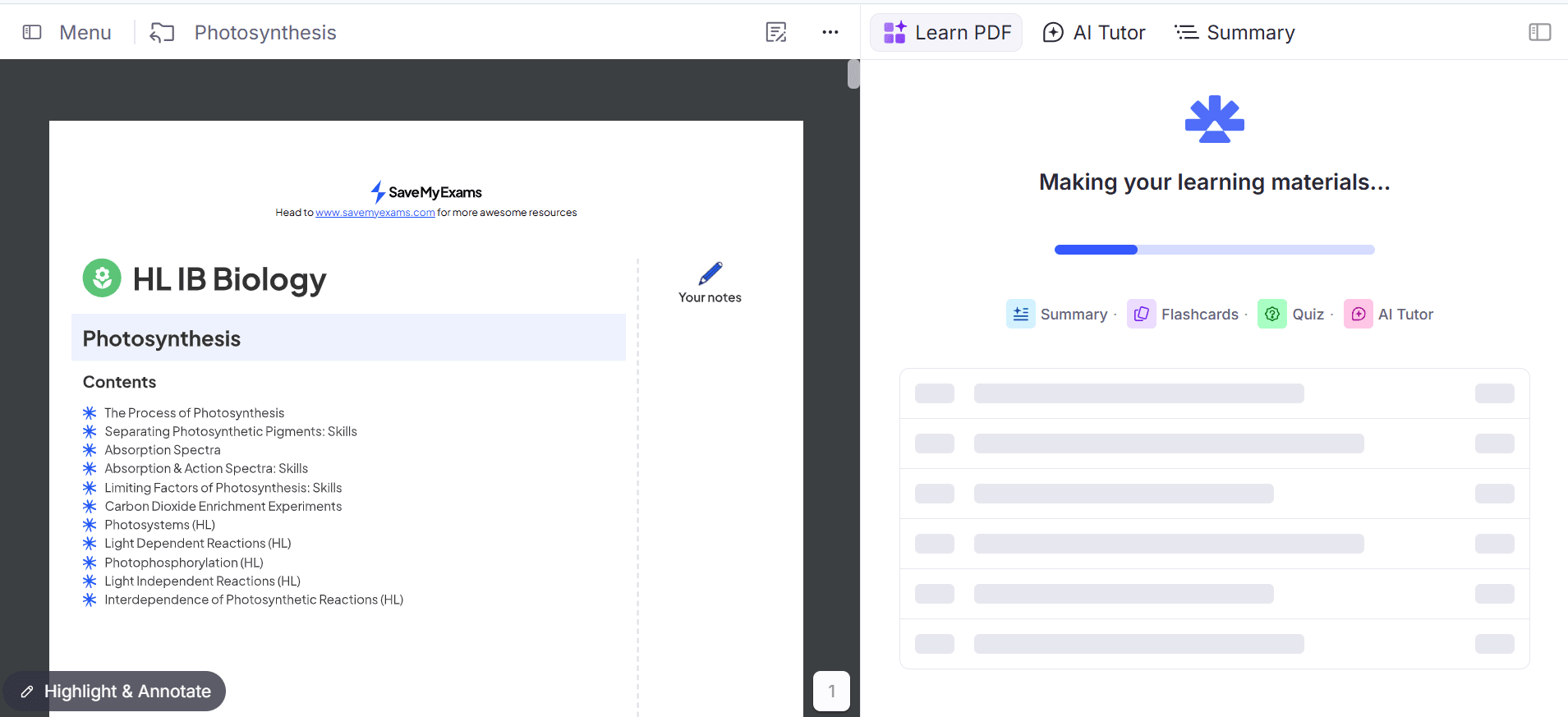
Now, as you can see, RemNote has started creating learning materials from our uploaded photosynthesis notes. The screen shows a progress bar and indicates that it is generating flashcards, summaries, quizzes, and AI Tutor support.
Step 3: Click on Start Learning
When the learning materials are ready, RemNote displays a study plan for your notes.
For my sample notes, it has divided the 43-page-long document into 7 sections.
Click “Start Learning” to begin working through the generated study plan.
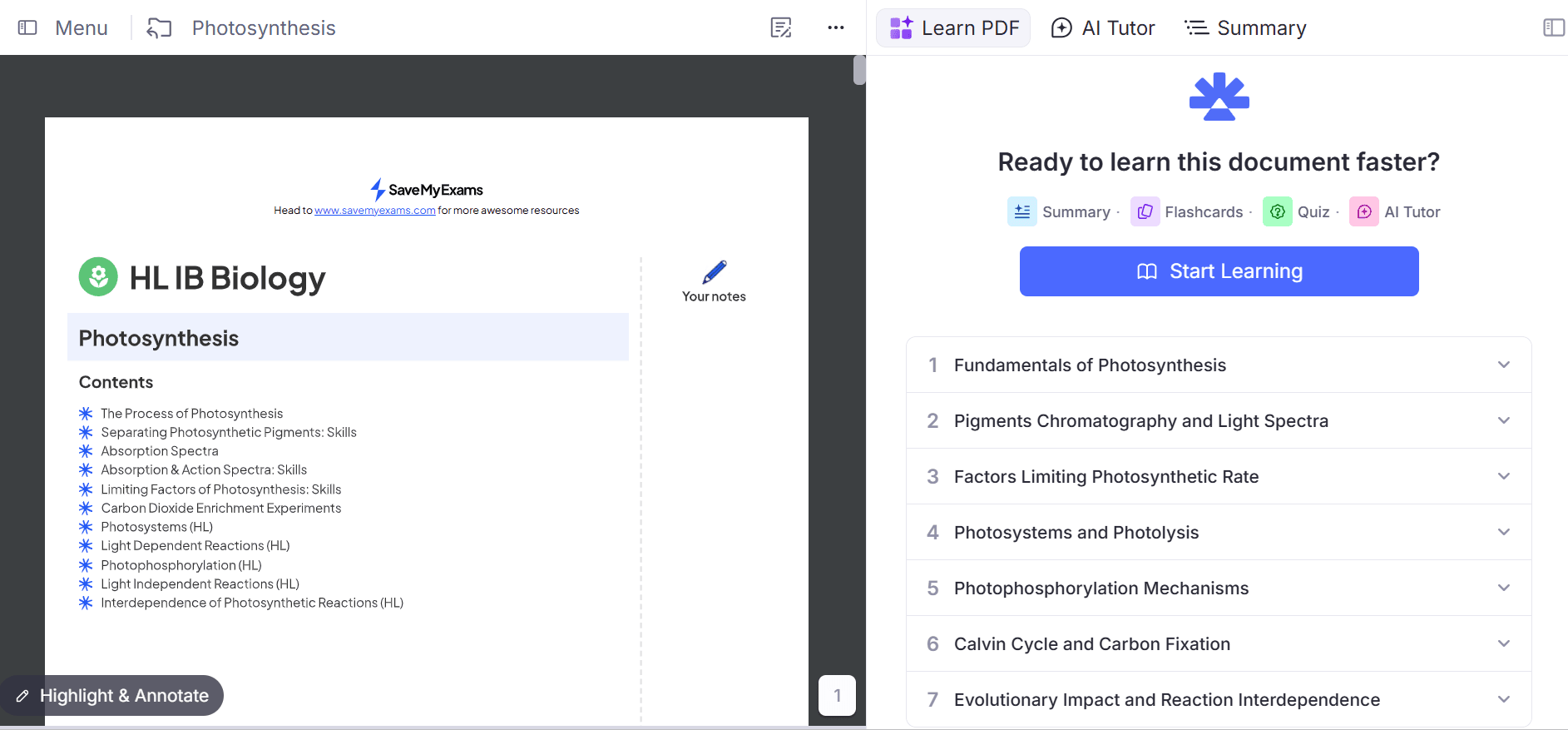
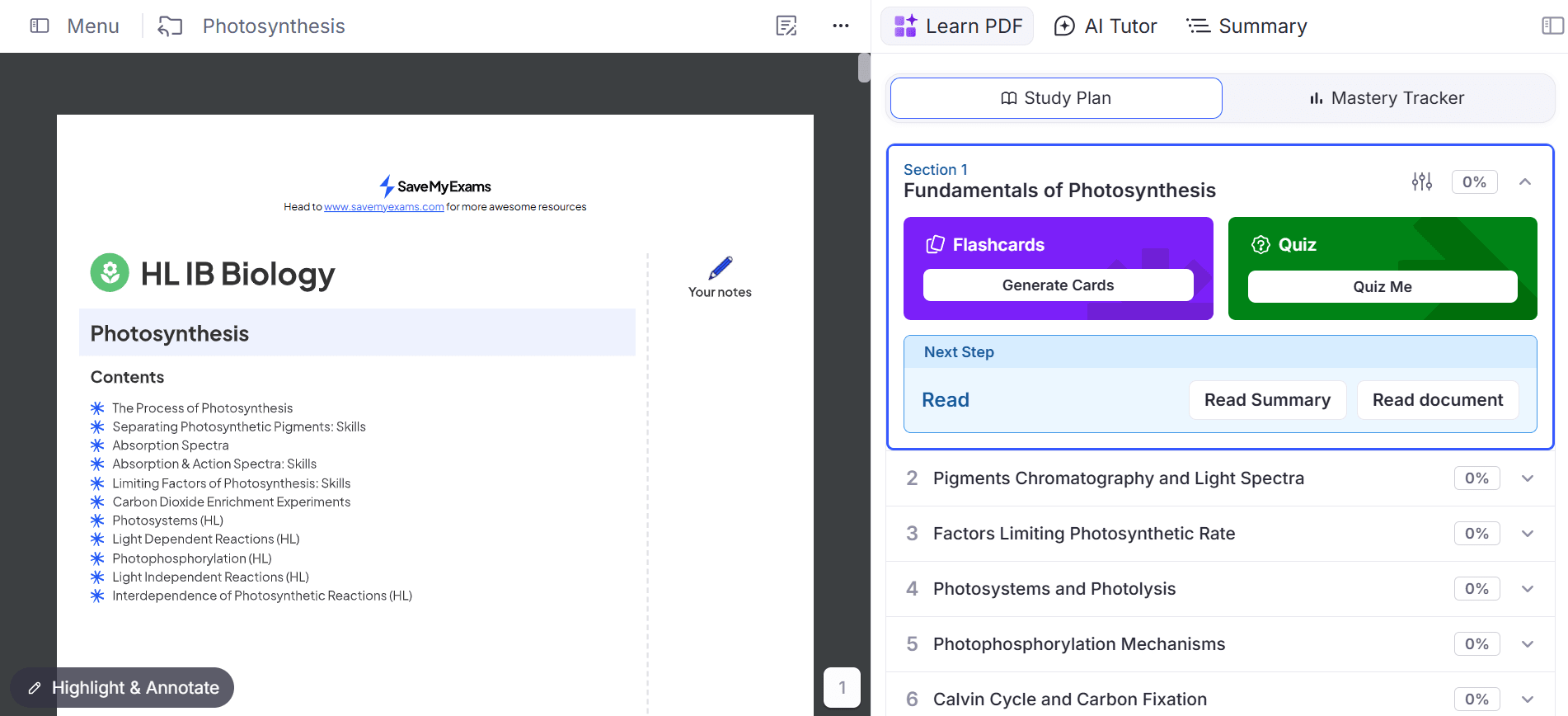
Step 4: Click on “Quiz Me”
Inside the study plan, each section contains its own study tools, which include:
- Flashcards
- Quiz
- Read tool, which includes a summary of the notes
To create a quiz from a section, click on “Quiz Me” under the green quiz card.
For example, if I want to test myself on the first section “Fundamentals of Photosynthesis,” I’d expand that section and select Quiz Me.
Step 5: Customize Your Quiz
I really like how RemNote considers your preferences in converting your notes into quizzes. You can choose:
- The question style to either be Multiple Choice or Free Response
- The difficulty between Recall, which is for remembering facts, or Application, which asks you to apply what you know
- Under the advanced options, you can choose how many questions to generate.
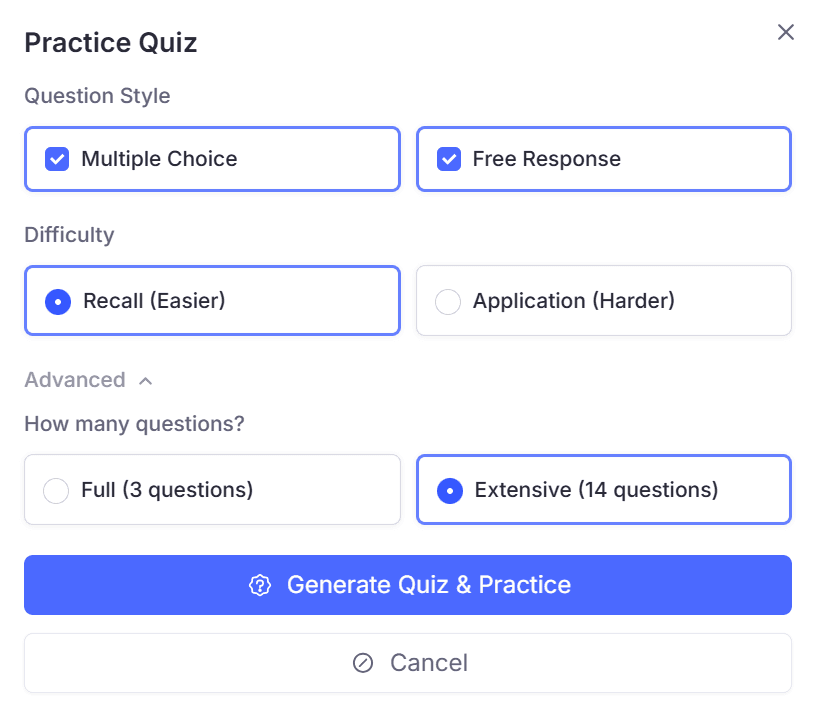
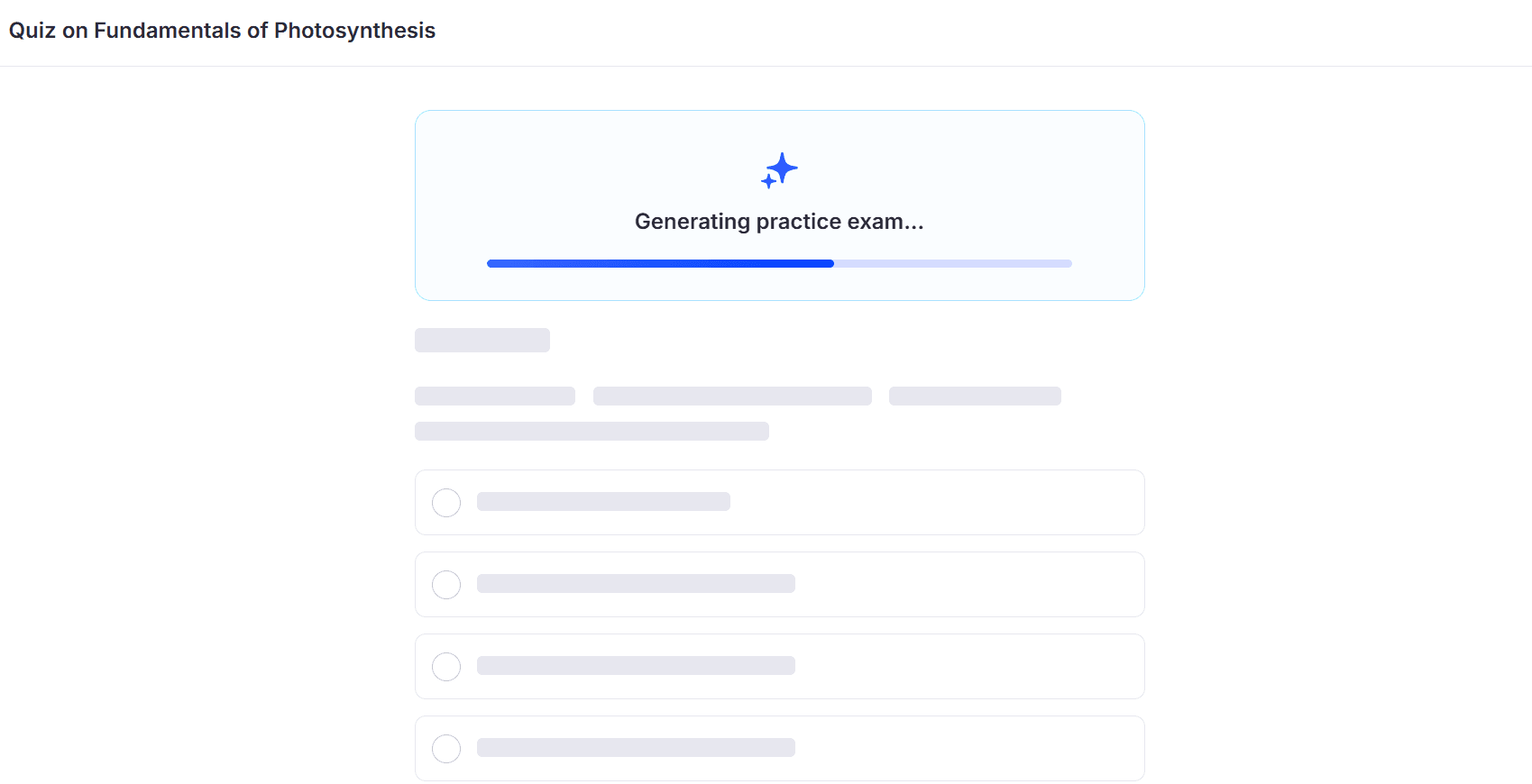
Once your settings are selected, click “Generate Quiz & Practice.” Right after, RemNote will show a loading screen while the quiz is being prepared.
Step 6: Start Practicing!
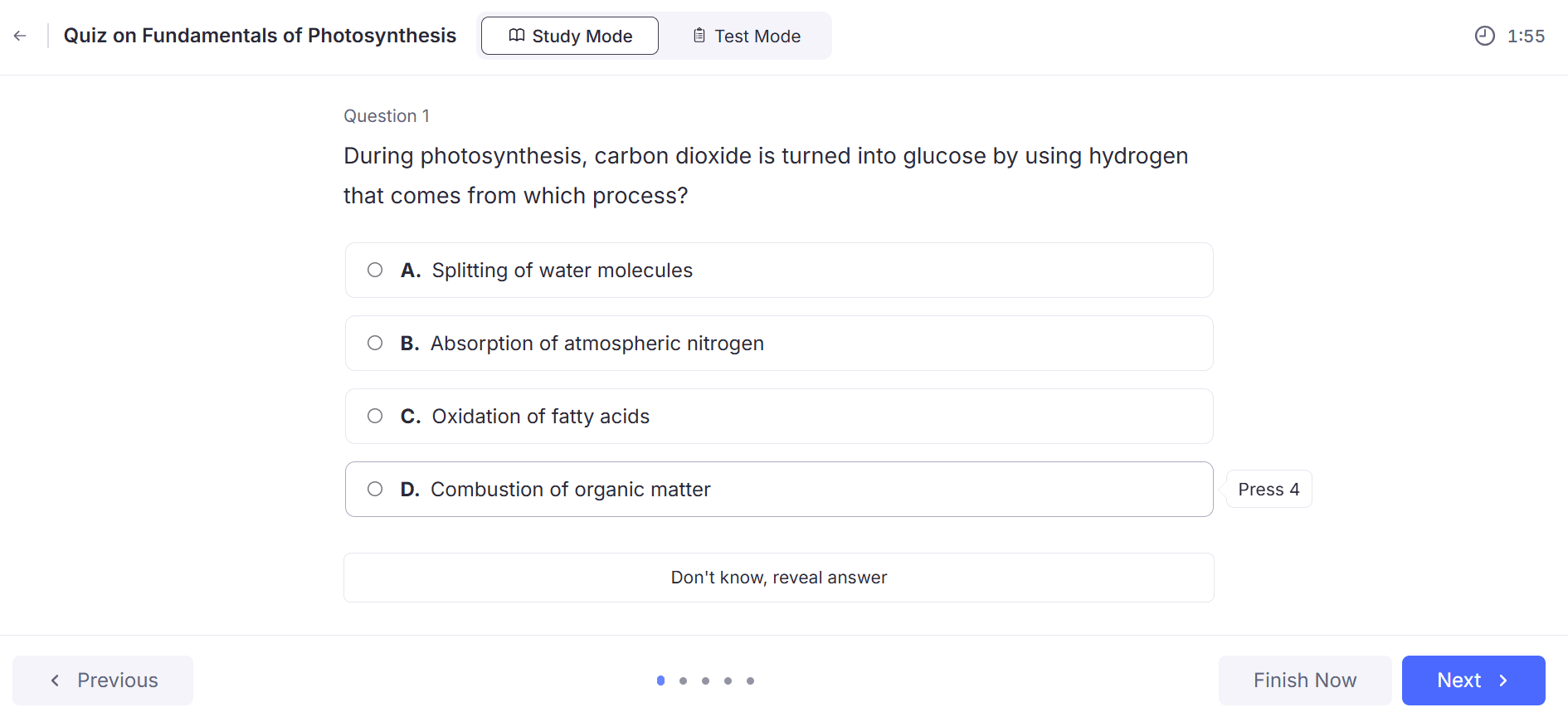
The quiz interface shows the section title, the question number, answer choices, navigation buttons, and a timer in the top-right corner.
RemNote gives you two practice modes:
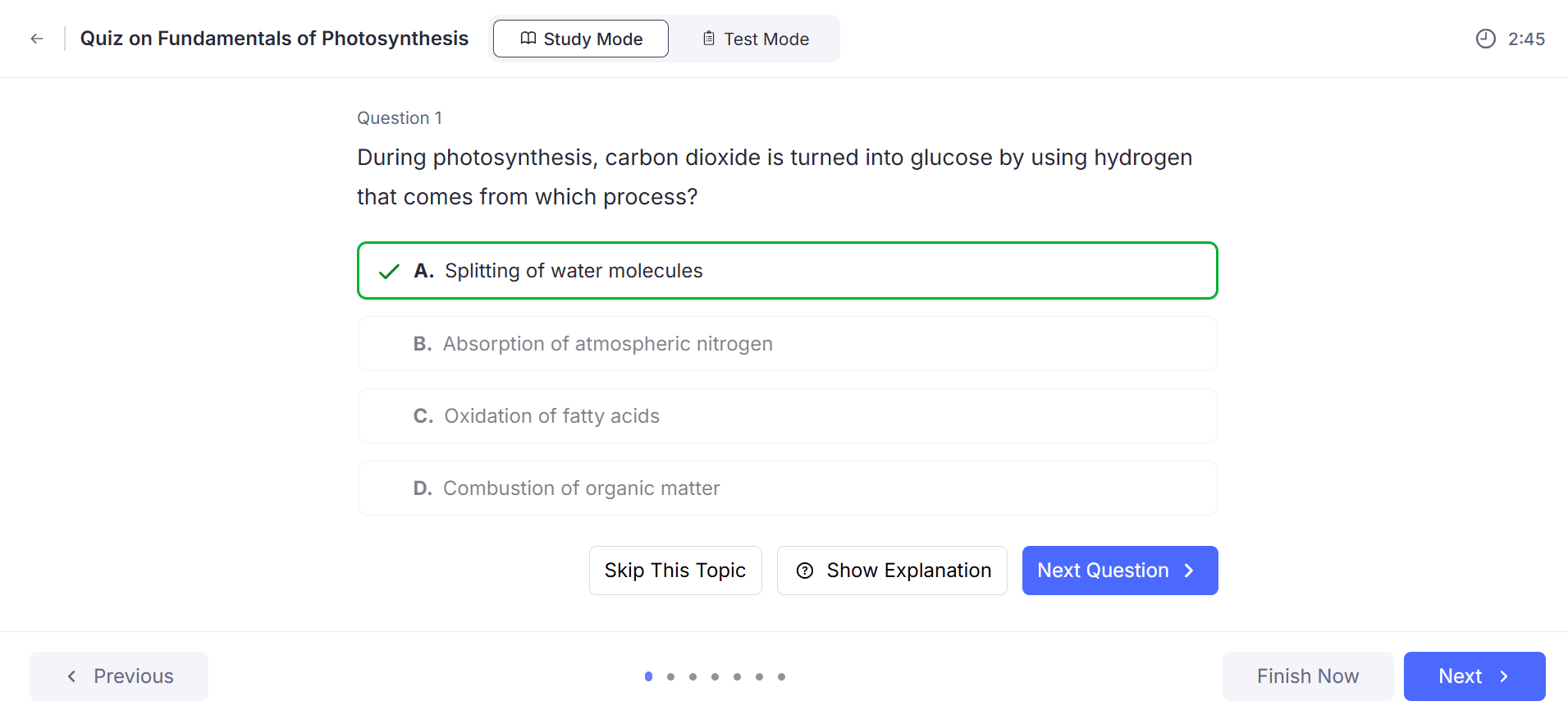
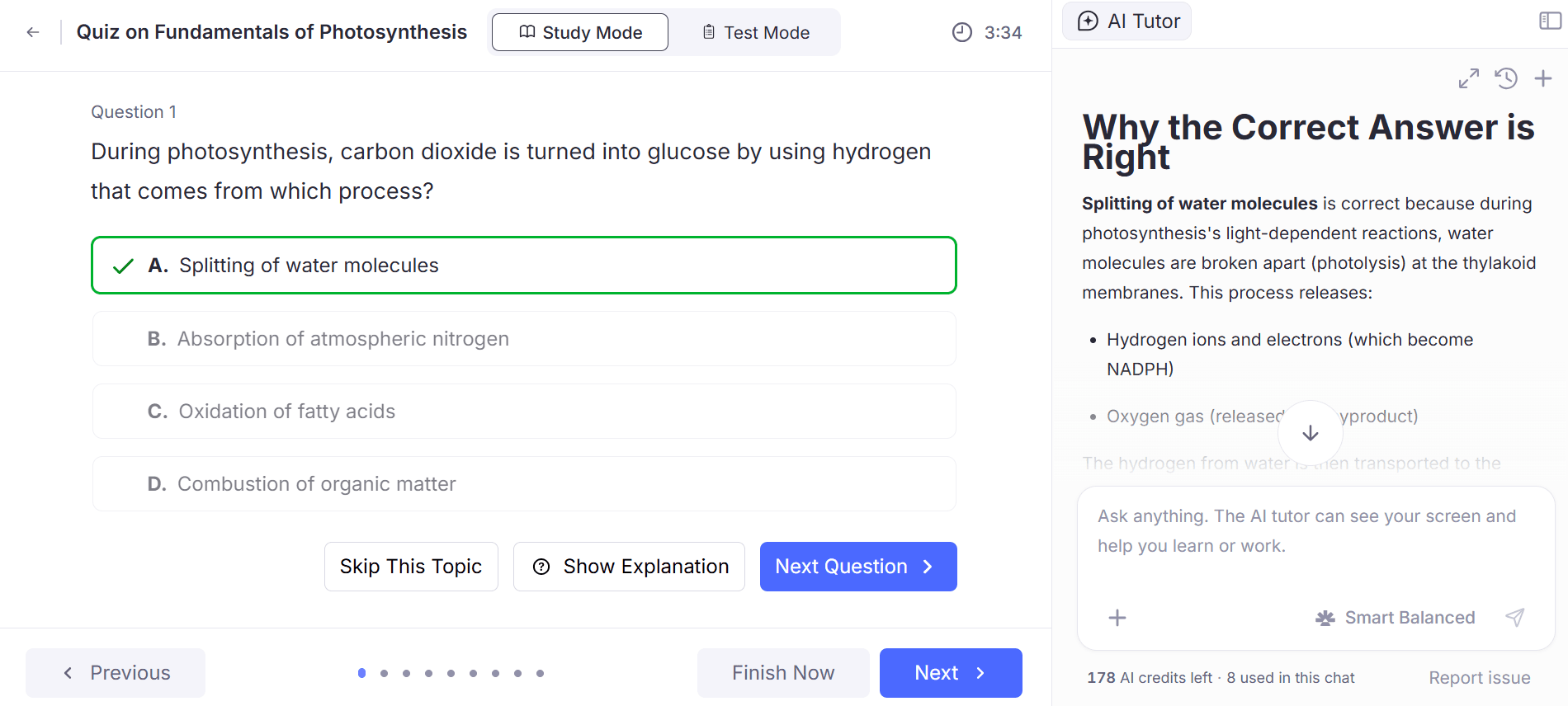
- Study Mode: With this, you learn at your own pace. Each time you click an answer, you’ll know if it was correct or not. You can also click on “Show Explanation” to open the AI Tutor panel on the right side of the screen, which explains why the correct answer is right.
- Test Mode: In this mode, the quiz works more like a real exam. You answer all the questions first without seeing the answers immediately, and after finishing all your questions, you can review your score.
You’re shown one question at a time. You can either select 1 of the 4 answer choices (or use the keyboard shortcuts 1, 2, 3, and 4, respectively) or click on “Don’t know, reveal answer” to see the correct answer.
Upon answering a question, you can continue with the next question or read an explanation if you don’t know it well enough.
The explanations are AI-generated but based on your notes. You can also ask follow-up questions if you don’t understand any part of the explanation.
And just like that, any of your course notes can be converted into quizzes you can practice for exams!
FAQs
How to Convert Notes Into Quizzes For Free?
Many online tools allow you to convert notes into quizzes for free. RemNote, for example, is a great all-in-one learning tool through which you can create multiple different types of active study material from your notes, like quizzes, flashcards, and AI summaries. It also has an AI tutor that explains certain sections of your notes that you have a hard time learning.
What is an AI Quiz Generator?
An AI quiz generator tool creates ready-to-practice questions for you from the study material you provide it. You can feed in your lecture slides or notes, and the tool will create many different types of questions to test how well you know it.
Study Smarter With More Active Recall Tools at RemNote
Now that you know how to convert notes into quizzes with RemNote, I’d recommend you to explore the tool a little further and find many more exceptional study hacks.
For starters, RemNote gives you notes, linked documents, AI tutoring, and spaced repetition in one workspace. It uses FSRS (Free Spaced Repetition Scheduler) as its spaced repetition algorithm, which is the same algorithm Anki runs on.
Every quiz that RemNote generates for you is editable. You can change any content you want and add context as you study, which makes the quizzes useful study material for exams.
And what I like the most about it is that the tool is free to use! It doesn’t capitalize on the struggles of the students and allows you to create AI quizzes and flashcards completely for free. The paid plans exist only for advanced AI and study workflows that you can upgrade to, but all the core functionalities run for free as well.
Try RemNote for free today.