


Tabbed Navigation for Your Notes
Navigate your notes like a web browser. Keep multiple documents open, organized in tabs, and switch between them instantly.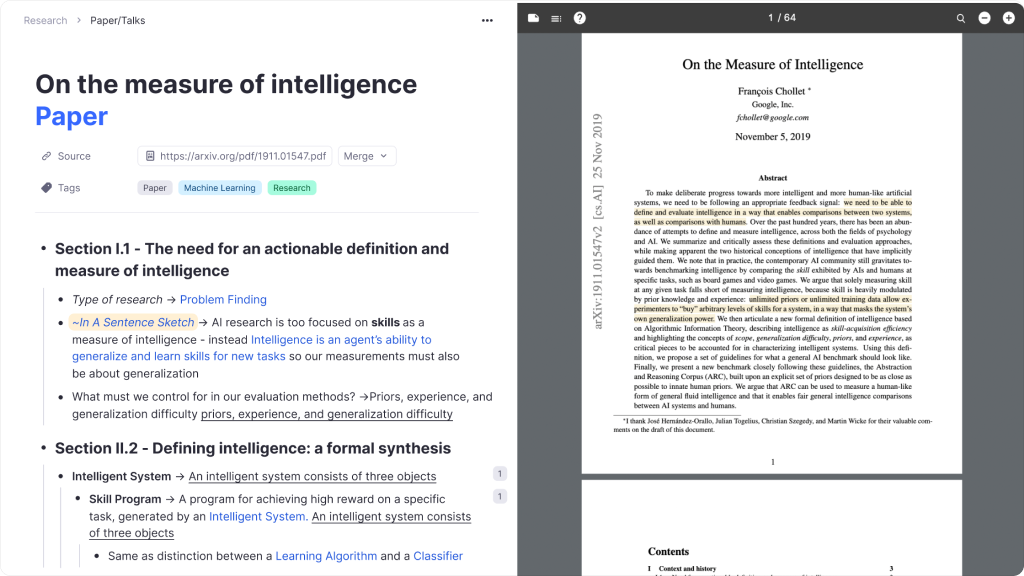
Join 1,000,000+ students getting higher grades!
Work with Multiple Documents at Once
Keep your lecture notes, textbook PDFs, and flashcards open simultaneously. No more jumping back and forth or losing your place.
Locked Tabs for Quick Access
Pin your most-used documents so they stay open. Perfect for daily notes, todo lists, and dashboards.
Always Available
Locked tabs stay open until you decide to unlock them.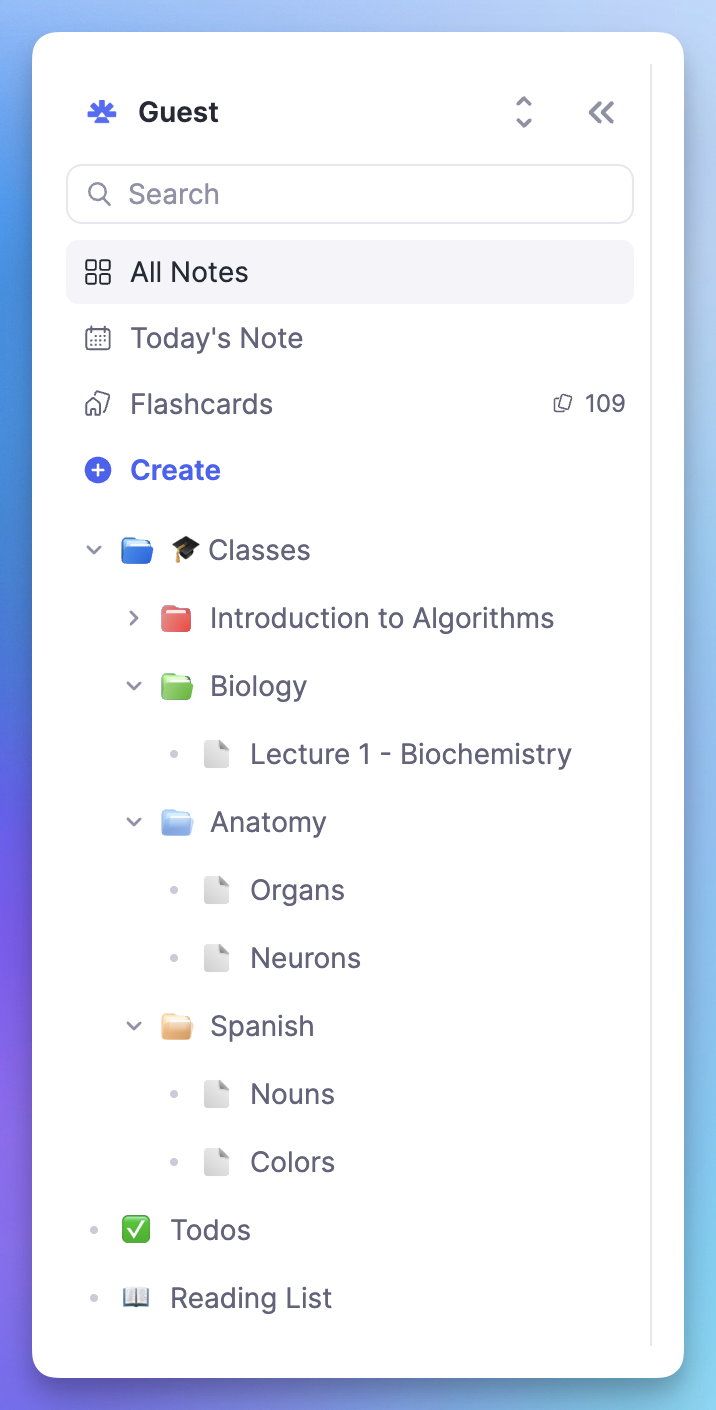
Smart Link Behavior
Click links in a locked tab and they open in a new tab automatically.Right-Click to Lock
Locking a tab is just one right-click away.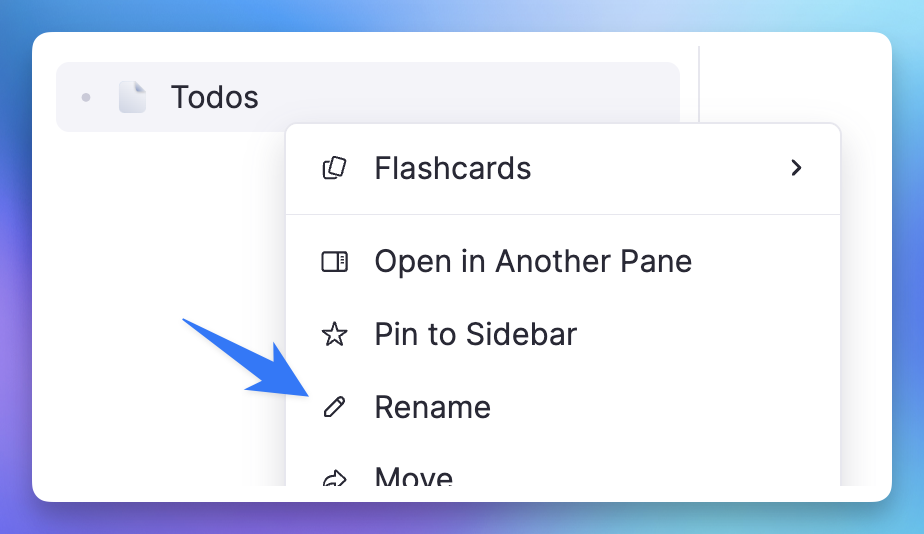
Keyboard Shortcuts for Speed
Open, close, and switch between tabs without touching your mouse. Master the shortcuts and navigate at the speed of thought.
Multiple Panes per Tab
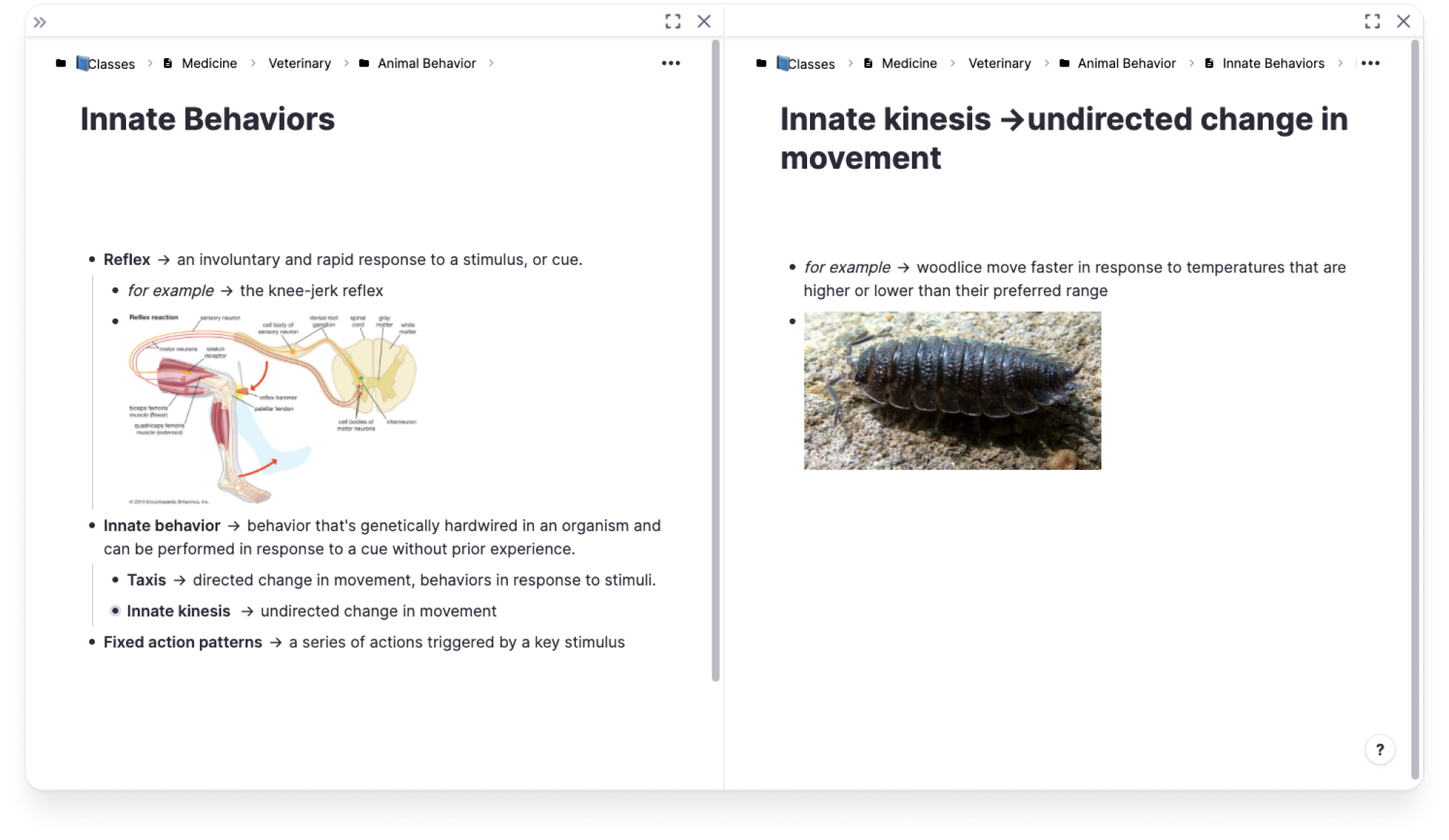
Split your view to see multiple documents side by side within a single tab. Perfect for comparing notes or referencing while writing.
Side-by-Side View
View your lecture notes next to your flashcards.Reference While Writing
Keep source material visible while taking notes.Organized Workspace
Keep related documents together in one tab.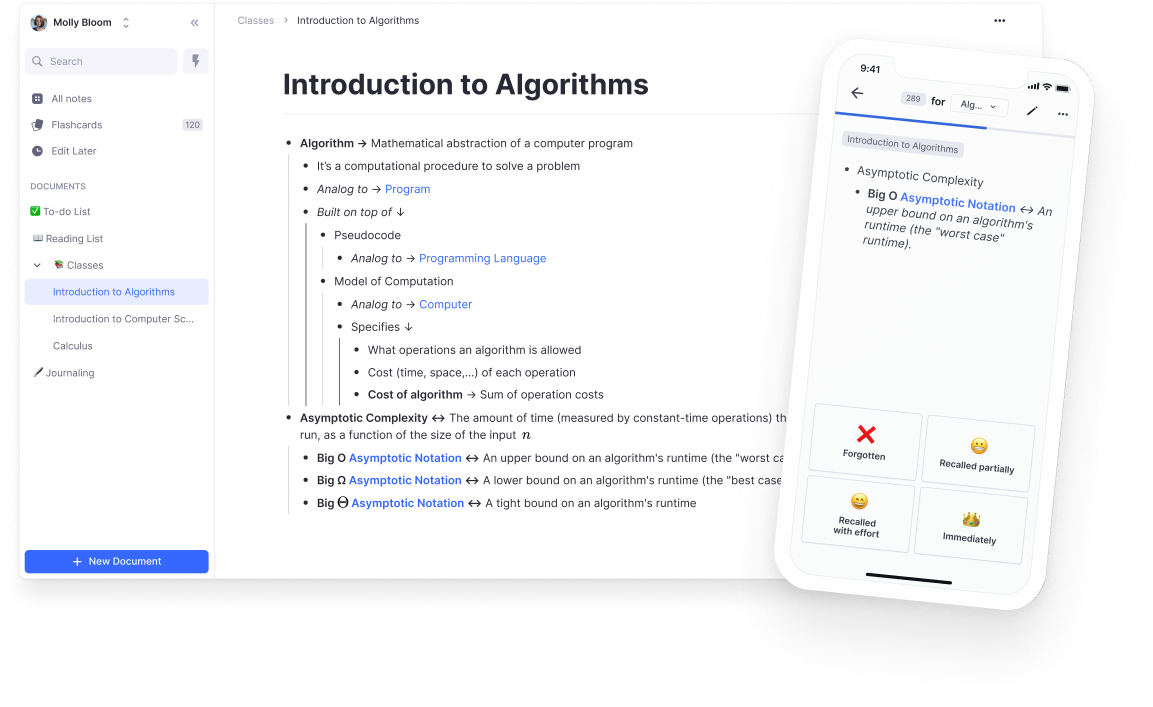
Join 1,000,000+ students getting higher grades!
Frequently Asked Questions
How do tabs in RemNote help with studying efficiency?
Tabs let you keep multiple documents open at once, so you can move between lecture notes, textbook PDFs, and flashcard decks without losing your place. Instead of constantly navigating back and forth through a sidebar, you switch between tabs instantly, just like in a web browser.
This is especially valuable during study sessions where you need to cross-reference material. You can have your source material in one tab and your own summary notes in another, keeping everything accessible without cluttering a single view.
Can I view multiple documents side by side in RemNote?
Yes. Each tab in RemNote can be split into multiple panes, letting you view two or more documents side by side within a single tab. This is useful for reading a PDF on one side while taking notes on the other, or for comparing two sets of notes during revision.
You can also use locked tabs to pin frequently used documents like daily notes or a todo list. Locked tabs stay open permanently and any links you click from them open in a new tab, so your pinned document is never replaced.
Do my open tabs sync across devices?
Yes. Your open tabs and their state are saved, so you can pick up exactly where you left off on another device. Start a study session on your laptop with several tabs open, then continue on your desktop or tablet without needing to reopen anything.
This sync works across Mac, Windows, Linux, iOS, Android, and the web app. Your workspace layout, including which tabs are locked and how panes are arranged, carries over so you maintain the same workflow everywhere.
How are RemNote tabs different from browser tabs?
RemNote tabs are built specifically for note-taking and studying workflows. Unlike browser tabs, they support features like locked tabs that stay pinned, split panes for side-by-side viewing, and keyboard shortcuts designed for navigating between documents. They also sync your workspace state across devices automatically.
Browser tabs are generic and have no awareness of your content. RemNote tabs understand your knowledge base, so actions like clicking a reference link or searching for a document integrate directly with the tab system, keeping your workflow smooth and uninterrupted.
Is my data private and secure?
Yes. Your notes and documents are securely stored with clear privacy protections in place. RemNote does not use your content for advertising or share it with third parties. Your knowledge base belongs to you.
RemNote also supports offline mode, meaning your data is stored locally on your device. You control when and how your notes sync to the cloud, and your workspace remains private and accessible only to you.

