


Do Anything From Your Keyboard
The /-menu and omnibar give you instant access to every function in RemNote. No shortcuts to memorize: just type what you want to do.
Join 1,000,000+ students getting higher grades!
The /-Menu: Actions While You Type
Press / while typing to open a menu of every action. Create flashcards, format text, insert tables without leaving the keyboard.
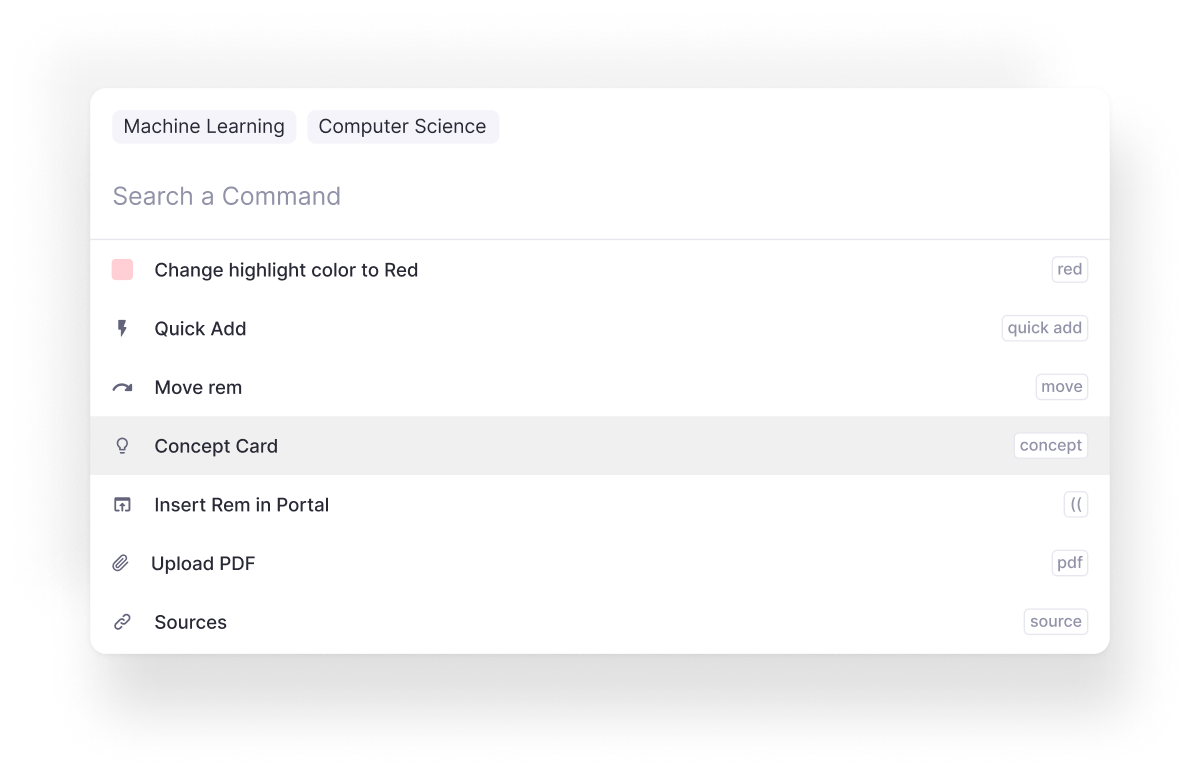
The Omnibar: Command Central
Press Cmd+K (Mac) or Ctrl+K (Windows) to open the omnibar. Everything from the /-menu, plus navigation and multi-note actions.
Navigate Instantly
Jump to any document, folder, or settings page without clicking.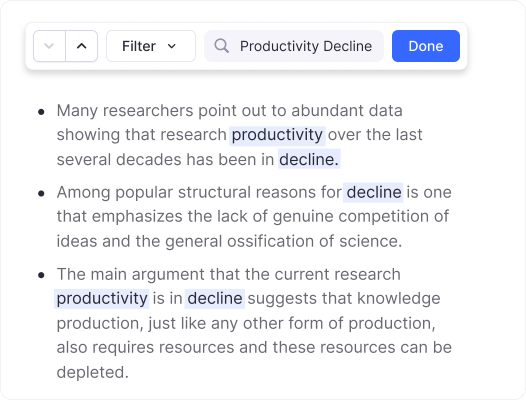
Bulk Actions
Select multiple notes and apply actions to all of them at once.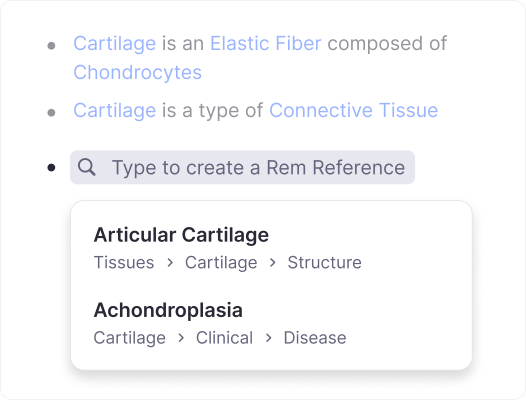
Shortcodes for Power Users
Learn brief codes for your most-used actions and execute them instantly.No Memorization Required
Just type what you want to do, like "flashcard", "highlight", or "table", and the menu finds it. Describe your intent in plain language.
Built for Every Workflow
Whether you prefer keyboard shortcuts, mouse clicks, or a mix, RemNote adapts to how you work.
Students
Create flashcards and format notes without breaking your study flow.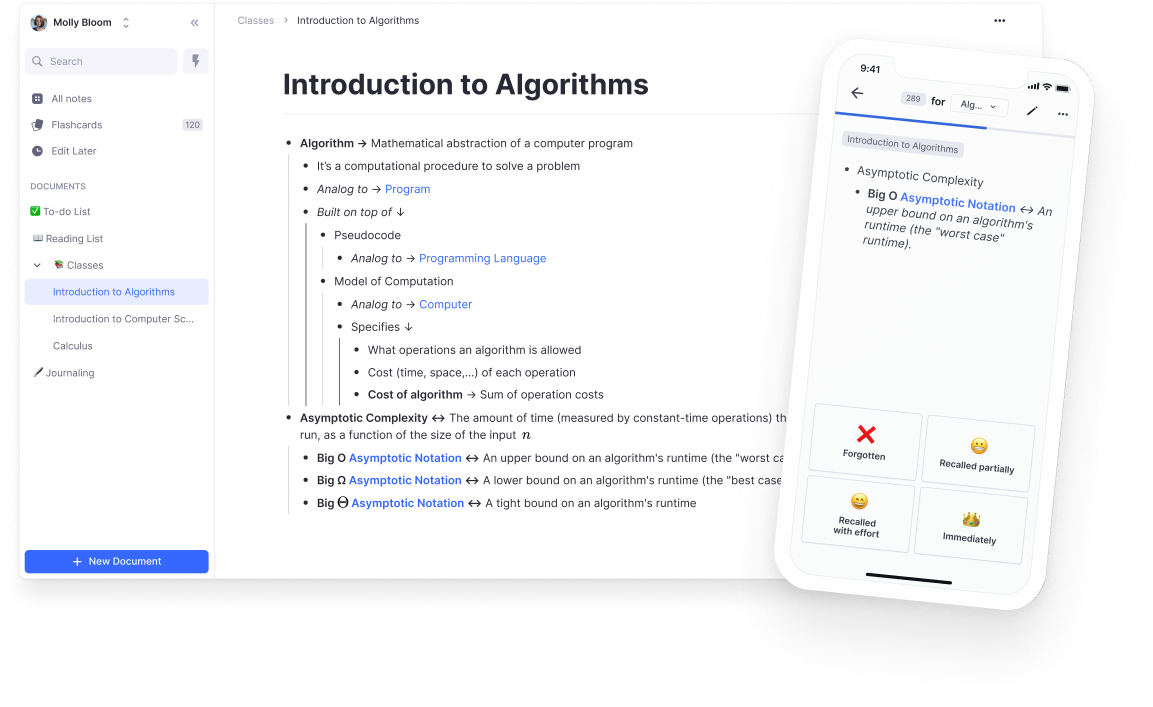
Researchers
Navigate between documents and organize ideas with keyboard efficiency.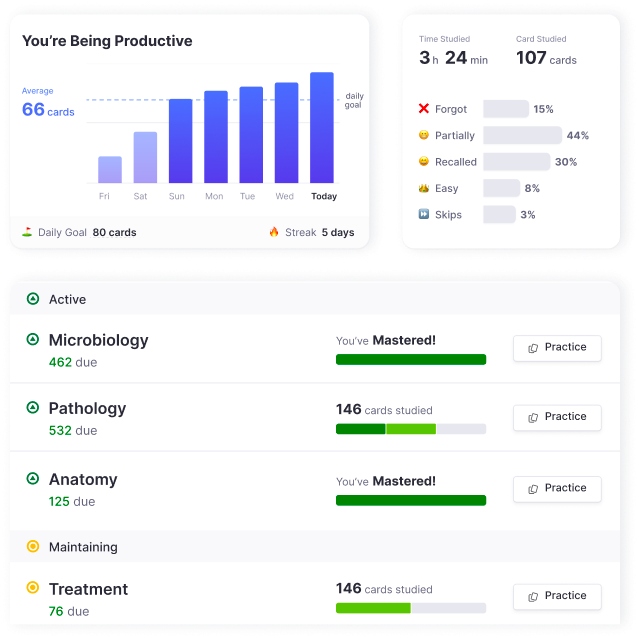
Power Users
Master shortcodes and execute complex workflows in seconds.Join 1,000,000+ students getting higher grades!
Frequently Asked Questions
What is a slash menu and how does the RemNote omnibar work?
The slash menu (opened by pressing / while typing) gives you instant access to actions on your current note, like formatting text, inserting flashcards, adding tables, or embedding media. Just type / followed by what you want to do, and matching commands appear immediately.
The omnibar (opened with Cmd+K on Mac or Ctrl+K on Windows) is a more powerful version that includes everything from the slash menu plus navigation and multi-note actions. You can jump to any document, open settings, or apply bulk operations across selected notes, all without leaving the keyboard.
Can I create flashcards without leaving my notes?
Yes. While taking notes, simply type / and search for the flashcard type you want to create, such as a multi-line card, cloze deletion, or basic question-and-answer card. The card is inserted directly into your notes, so your flashcards stay connected to the context where you learned the material.
This means you never need to switch to a separate flashcard app or break your study flow. Your cards are created in place and automatically added to your spaced repetition queue for future review.
Do I need to memorize keyboard shortcuts to use RemNote?
No. The slash menu and omnibar are designed so you can simply describe what you want to do in plain language. Type "highlight", "table", or "flashcard" and the matching action appears. You do not need to memorize any shortcuts to be productive.
For power users who want even more speed, each action displays a shortcode next to it. These are brief letter combinations, like "imlc" for Insert Multi-Line Card, that let you select commands instantly. Learning shortcodes is entirely optional and only useful once you have established your personal workflow.
Can I access AI features through the omnibar?
Yes. The omnibar provides access to AI-powered features directly from your keyboard. You can use it to generate flashcards from your notes, summarize documents, or ask questions about your content without navigating to a separate AI interface.
This integration means AI acts as an extension of your note-taking workflow. Select a block of text, open the omnibar, and choose an AI action to transform, summarize, or expand your notes in place.
Is my data private and secure?
Yes. Your notes and documents are securely stored with clear privacy protections in place. RemNote does not use your content for advertising or share it with third parties. Your knowledge base belongs to you.
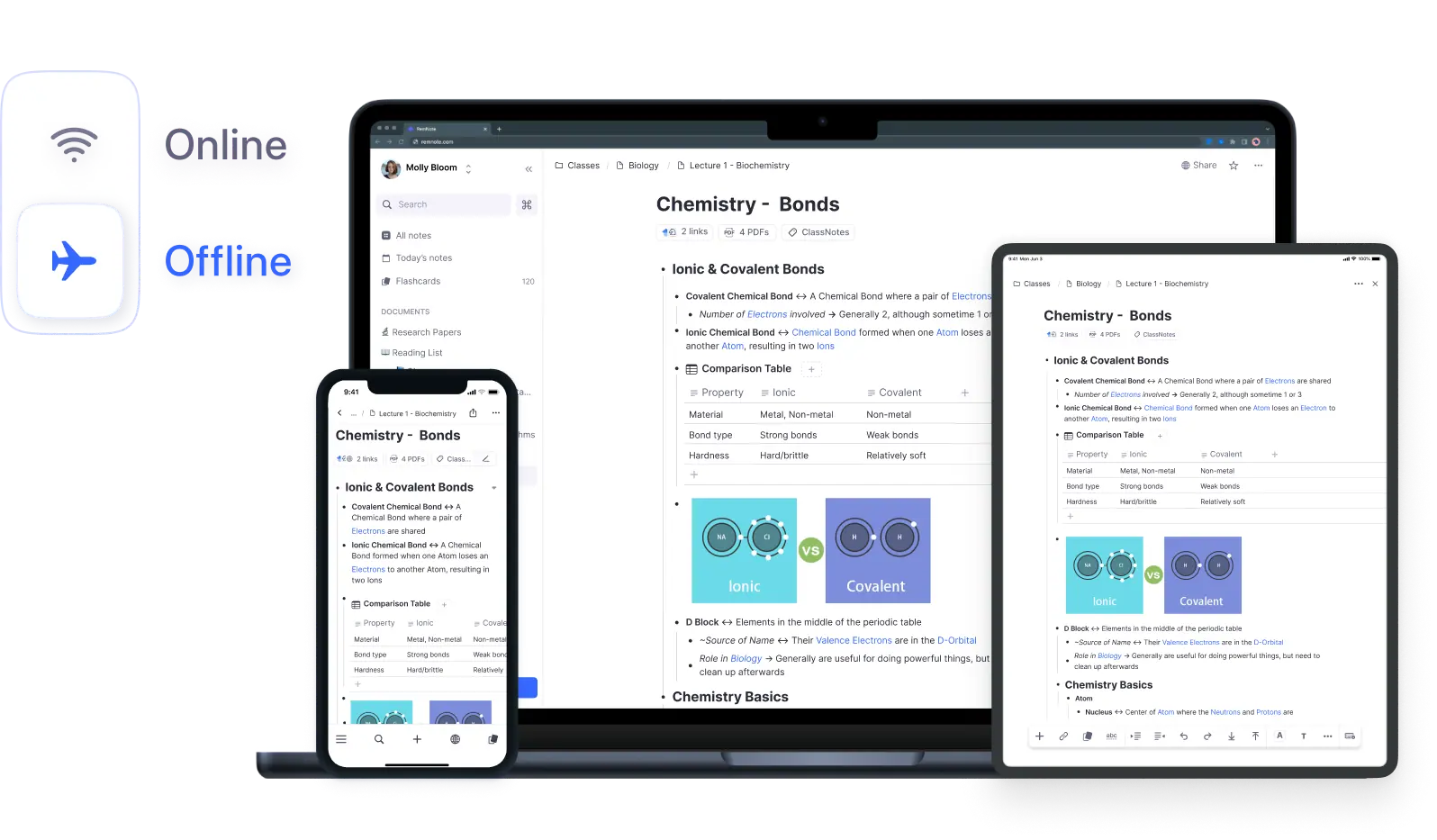
RemNote is also an offline-first application, meaning your data is stored locally on your device. You control when and how your notes sync to the cloud, and your workspace remains private and accessible only to you.

